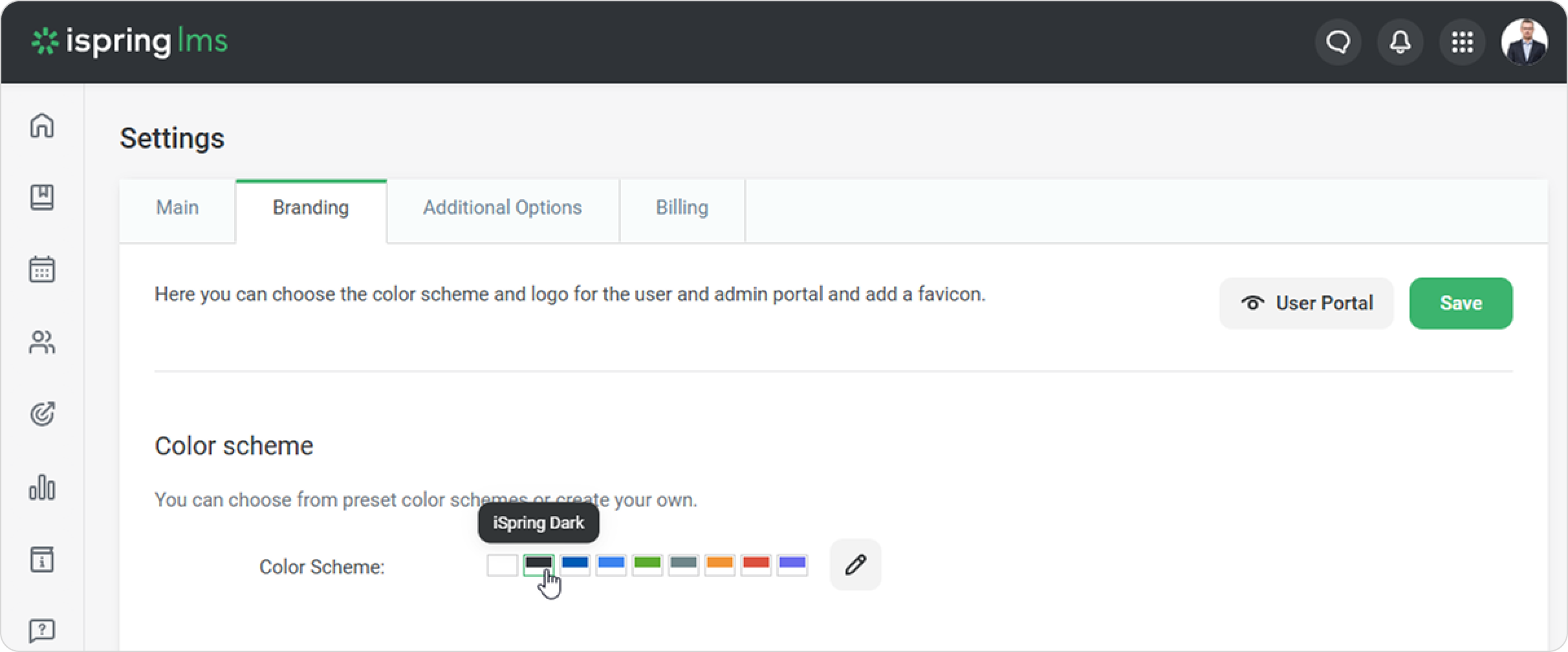
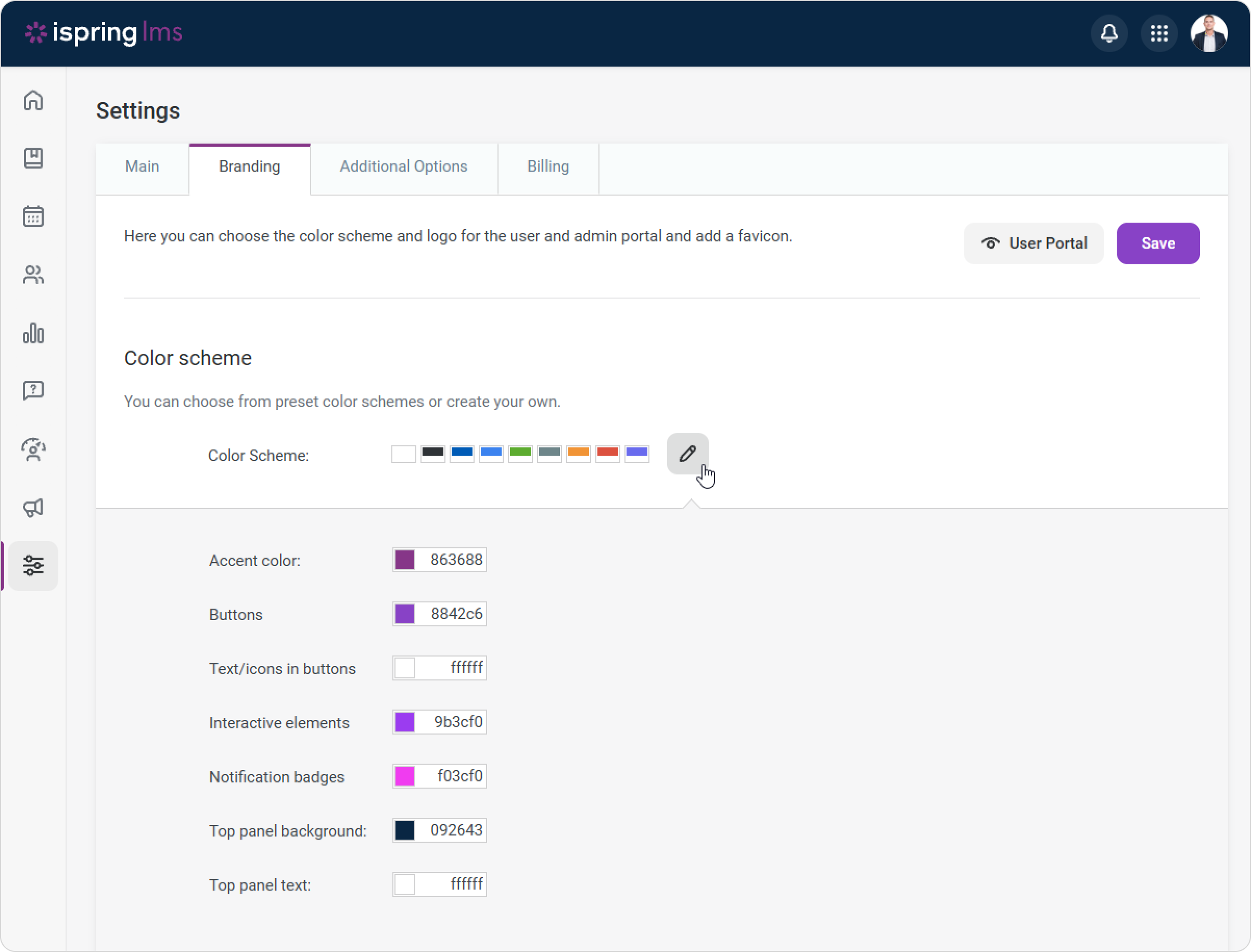
| Accent color | The color that defines the colors of all main page elements, such as buttons and icons. |
|---|
| Buttons | The color of the buttons in the Administrator and User portals. |
|---|
| Text/icons in buttons | The color of the text and icons in buttons in the Administrator and User portals. |
|---|
| Interactive elements | The color of the interactive elements in the Administrator and User portals. |
|---|
| Notification badges | The color of the notification badges in the Administrator and User portals. |
|---|
| Top panel background | The color of the top panel in the Administrator and User portals.
|
|---|
| Top panel text | The color of the elements located on the top panel in the Administrator and User portals, such as icons and inscriptions.
|
|---|