If there are issues in the template or auto-assignment settings, iSpring LMS won’t be able to assign the plan automatically.
Examples:
- A course has been deleted
- An observation checklist for a training session has been deleted or hidden
- The selected mentor or observer is unavailable: their account has been deleted or deactivated, or their employment has ended
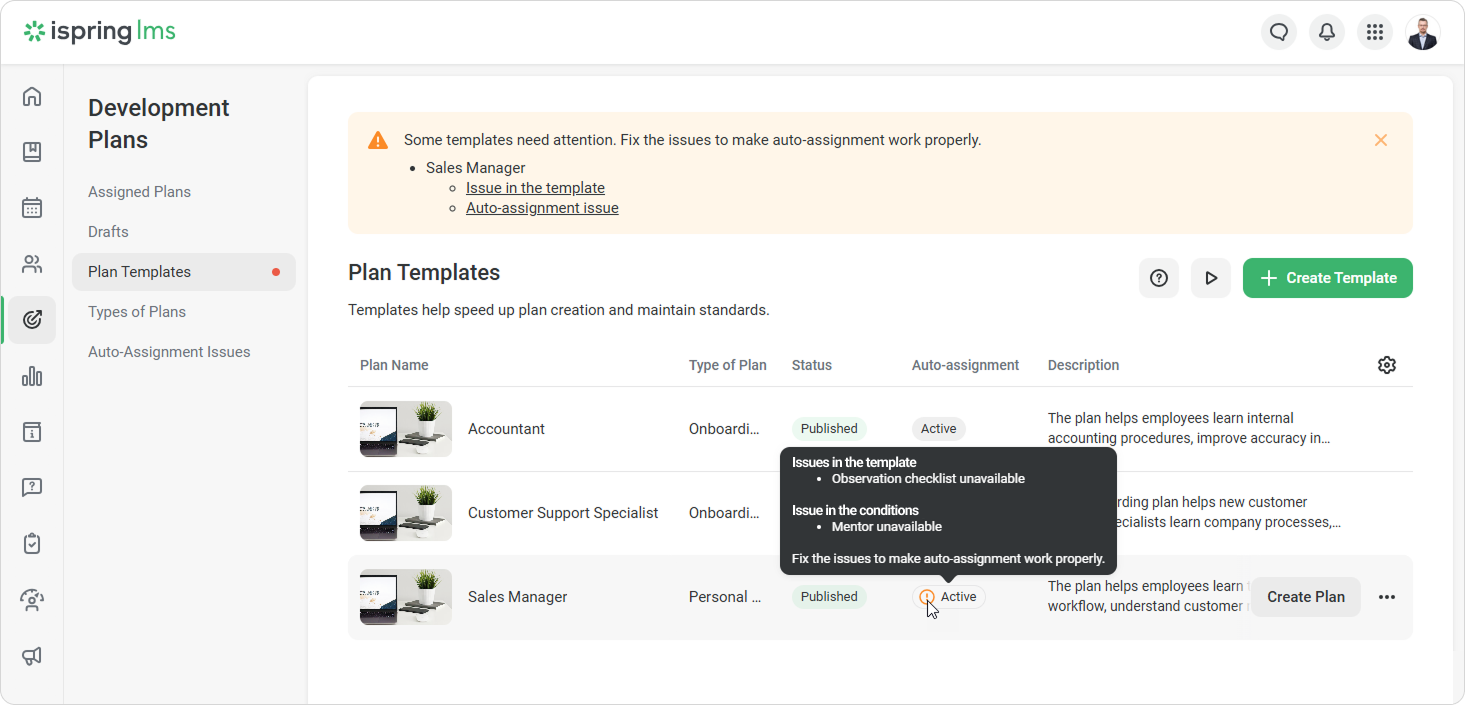
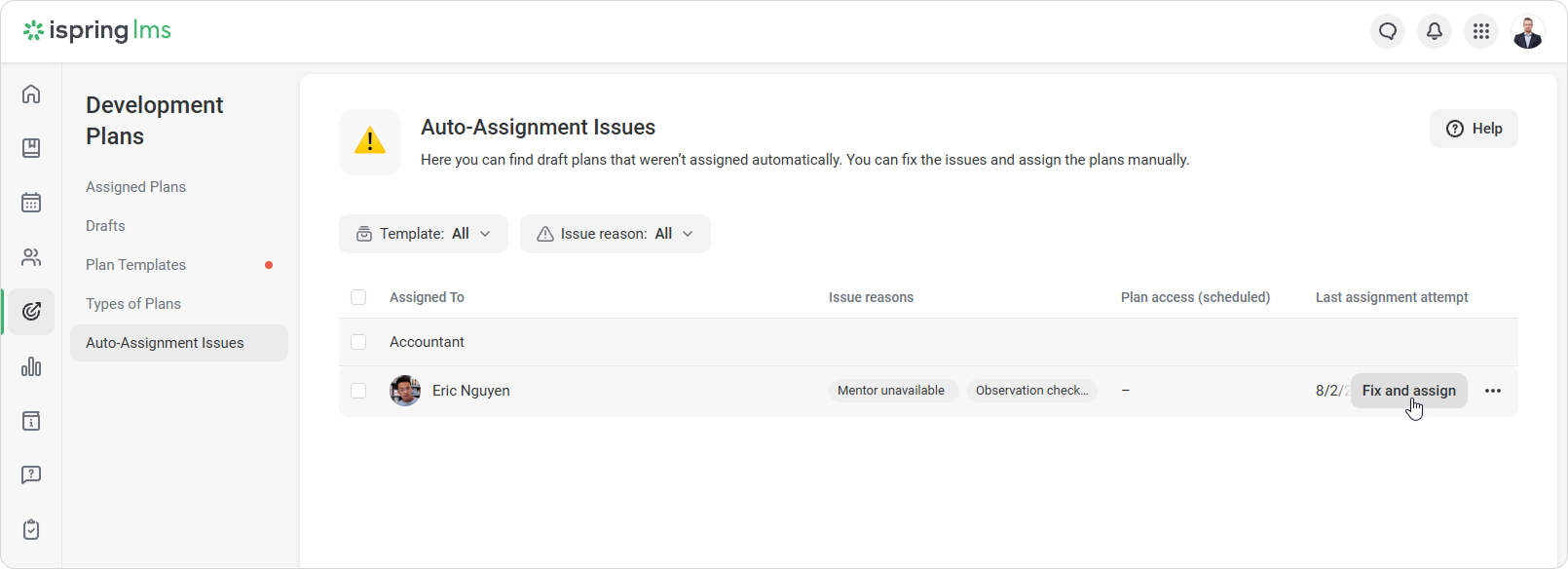
In this case, iSpring LMS will create a draft plan with an issue. These drafts don’t appear in the general list of assigned plans. You can find them in the Auto-Assignment Issues section.
This section appears in the left-hand menu when there is at least one draft with an issue.
Access permissions
There are two levels of access: viewing issues and fixing issues.
- Viewing issues
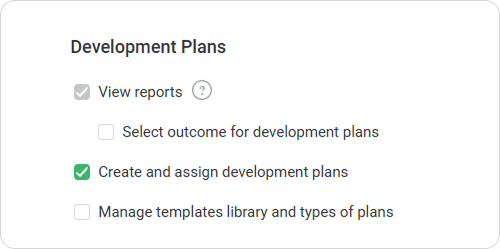
The Account Owner, Account Administrator, and employees with the View reports for development plans permission can open the Auto-Assignment Issues section and view the list of drafts.
- Fixing issues
The Account Owner, Account Administrator, and employees with the Create and assign development plans permission can fix a draft and assign the plan.
If an employee opens issues through a plan template, they also need the Manage templates library and types of plans permission.
How to open drafts with issues
You can open drafts in two ways.
From the left-hand menu
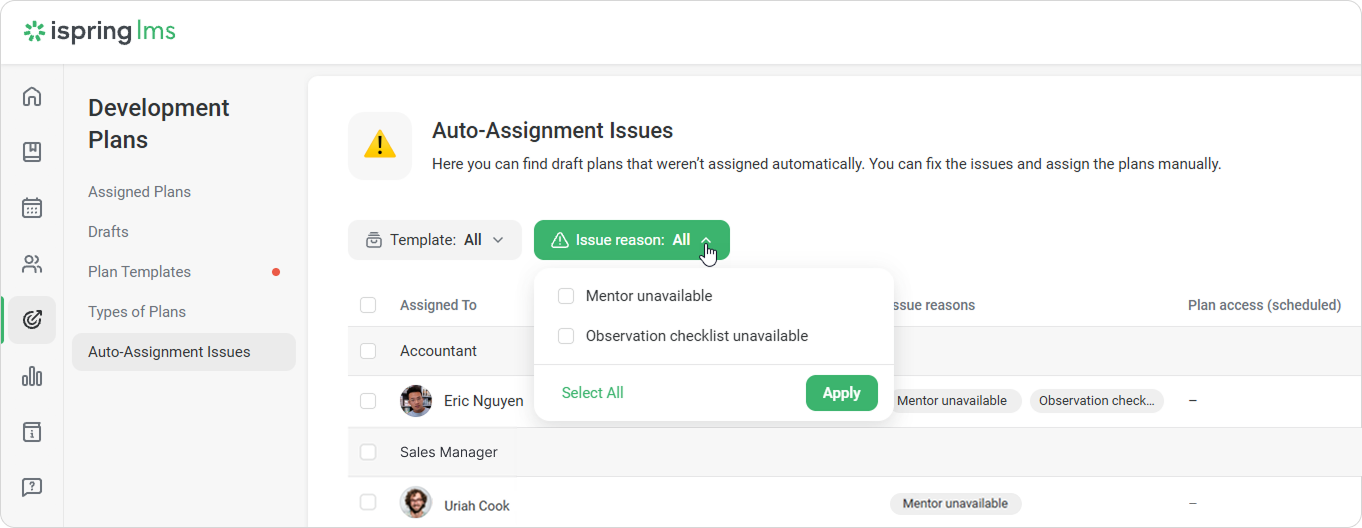
- Go to Development Plans > Auto-Assignment Issues.
- Find the needed draft. To find it faster, filter by template or issue reason.
From a plan template
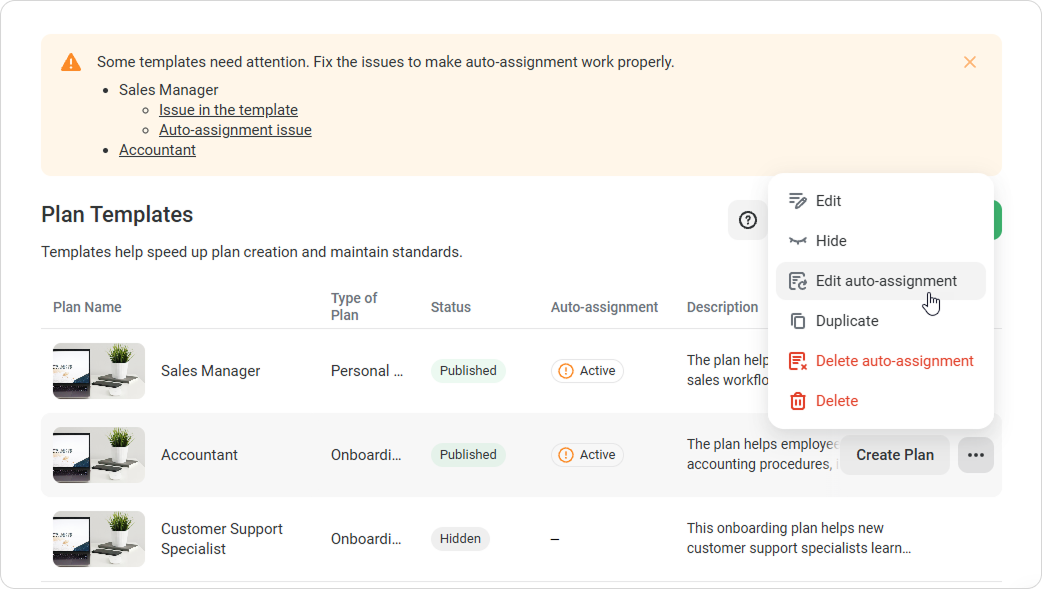
- In the Plan Templates section, find the template that has auto-assignment issues.
- Click ••• > Edit auto-assignment.
- In the Auto-assignment window, click View next to the issue alert.
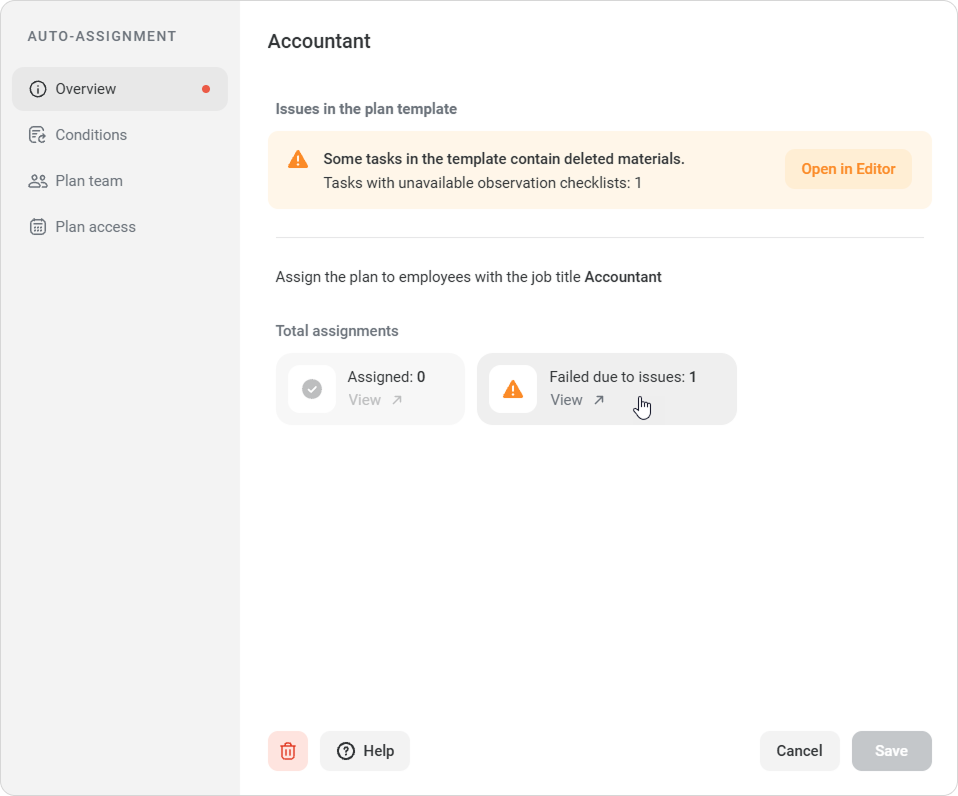
iSpring LMS will open the Auto-Assignment Issues section and show drafts for the selected template.
How to fix an issue
- In the list of drafts, click Fix and assign.
- iSpring LMS will open the draft plan and highlight the fields that need to be filled in or fixed.
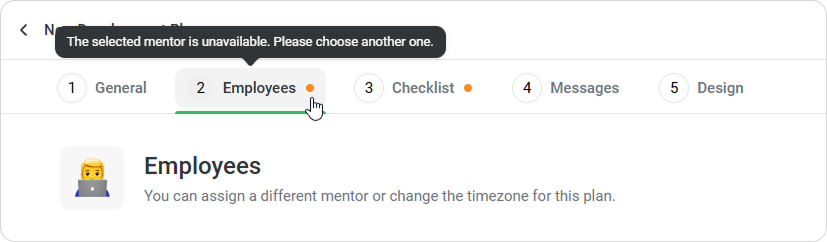
- Fix the issues. For example, select a mentor, select an observer, or replace a deleted course.
- Check the other plan settings.
- Click Finish and assign.
Done! The plan will move to the Assigned Plans list and become available to the employee on the start date.
If the draft is no longer needed, you can delete it. Deleted drafts cannot be restored.
Great! Assignments are now automated.