You can add a Knowledge Base article to a course in the Learning Content section or in the Knowledge Base.
Adding an article in the Learning Content Section
You can add a Knowledge Base article to a course in two ways:
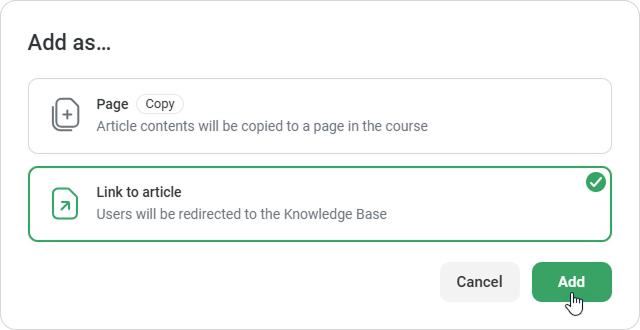
As a Page This Page will show up as a content item in your course. The Page is not linked to the original article in the Knowledge Base and any changes made will not affect it.
As a Link A link to the original article from the Knowledge Base will show up as a content item in your course.
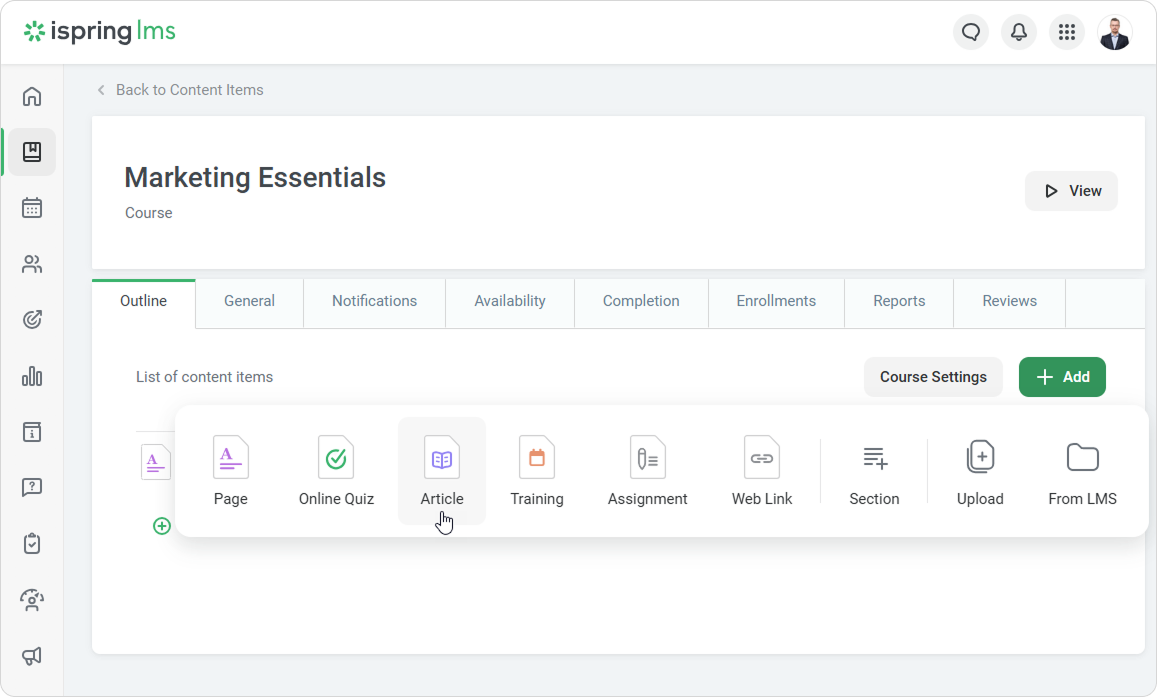
Go to Learning Content section and open the course in which you want to add the article.
Click Add > Article.
Select the article and click Continue.
Choose how you want to add the article to your course: as a Page or as a Link.
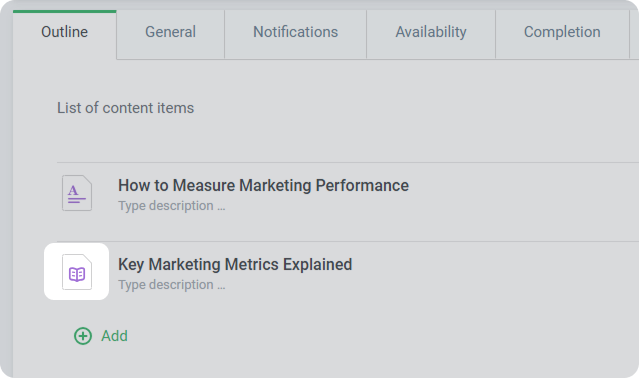
Click Add. If you add a link to a Knowledge Base article, this is how it looks to authors.
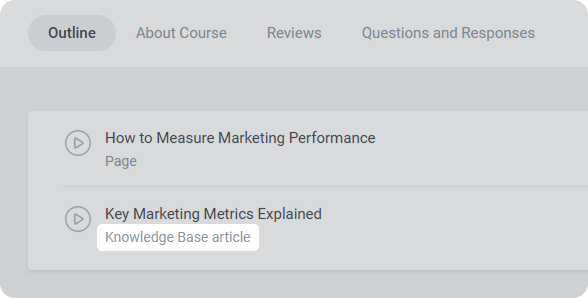
This is how it looks to learners.
If an article is added as a link and then deleted from the Knowledge Base, the link will still show up in the course.
When learners click it, they will see an error message: “Content Deleted.”
Their course progress will not be affected.
Exporting an article from the Knowledge Base
Open the article in theKnowledge Base.
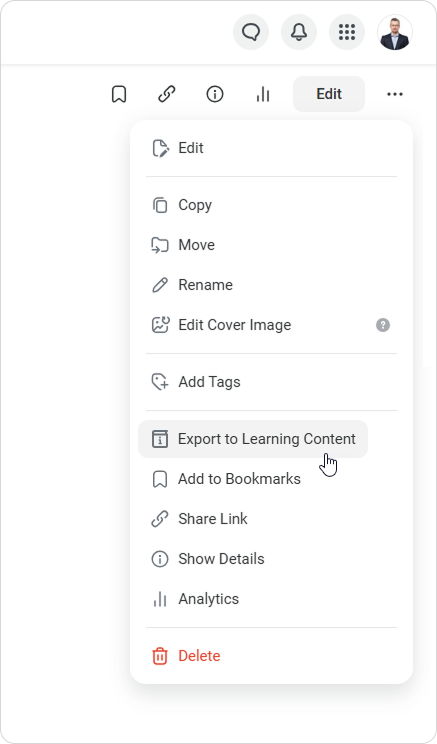
In the upper-right corner, click on ••• and selectExport to Learning Content.
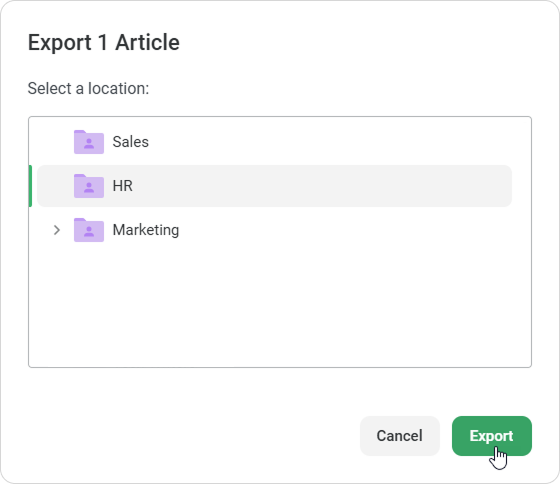
Choose a project or a folder where the article will be added. Then click Export.
When exported from the Knowledge Base, the article is created as a separate course in Learning Content, not added to an existing course.