If your computer is disconnected from the Internet or online publishing doesn't complete because of an antivirus program or a proxy server error, you canupload the book to iSpring Cloud manually.
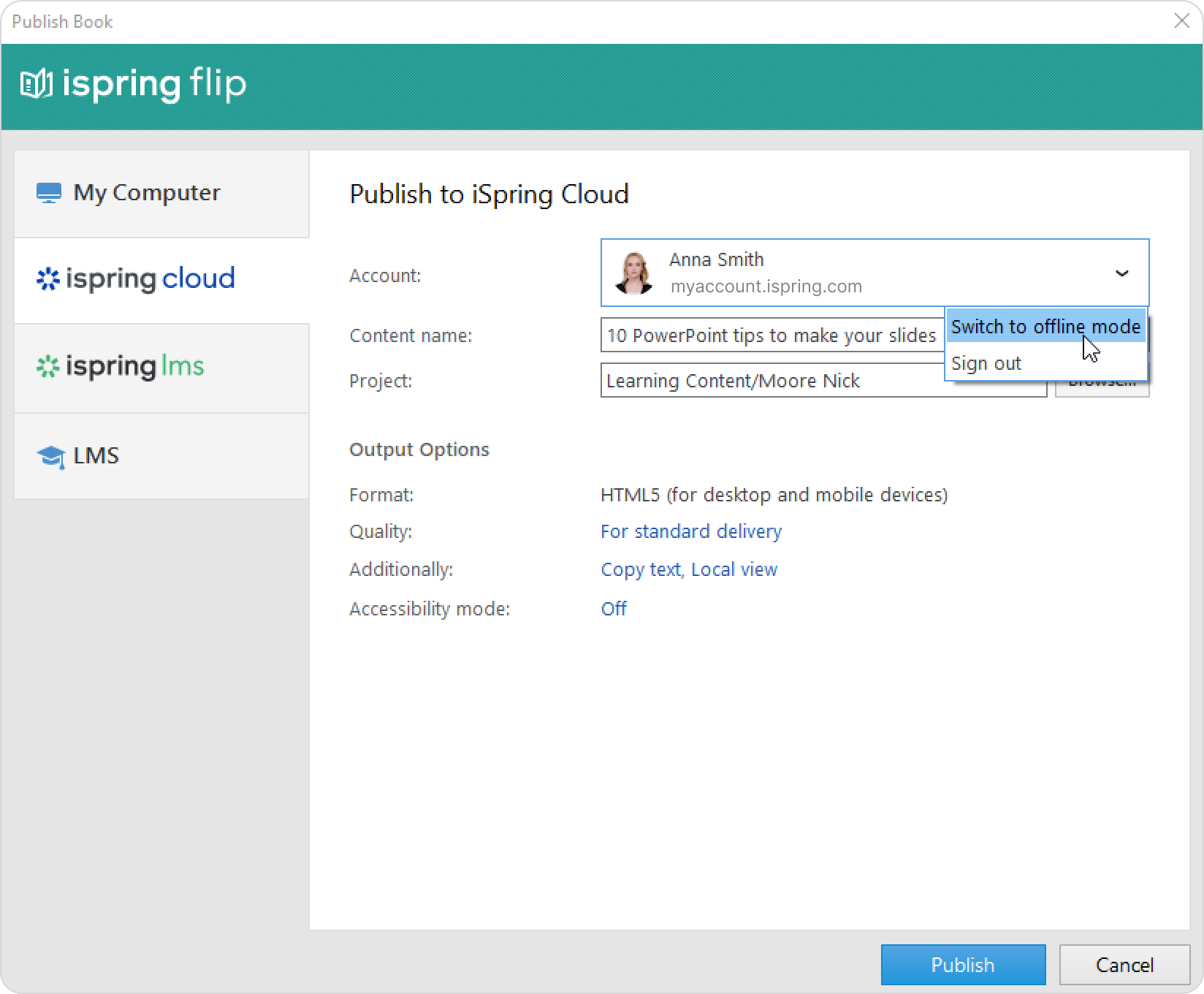
Go to the Account menu and select Switch to offline mode.
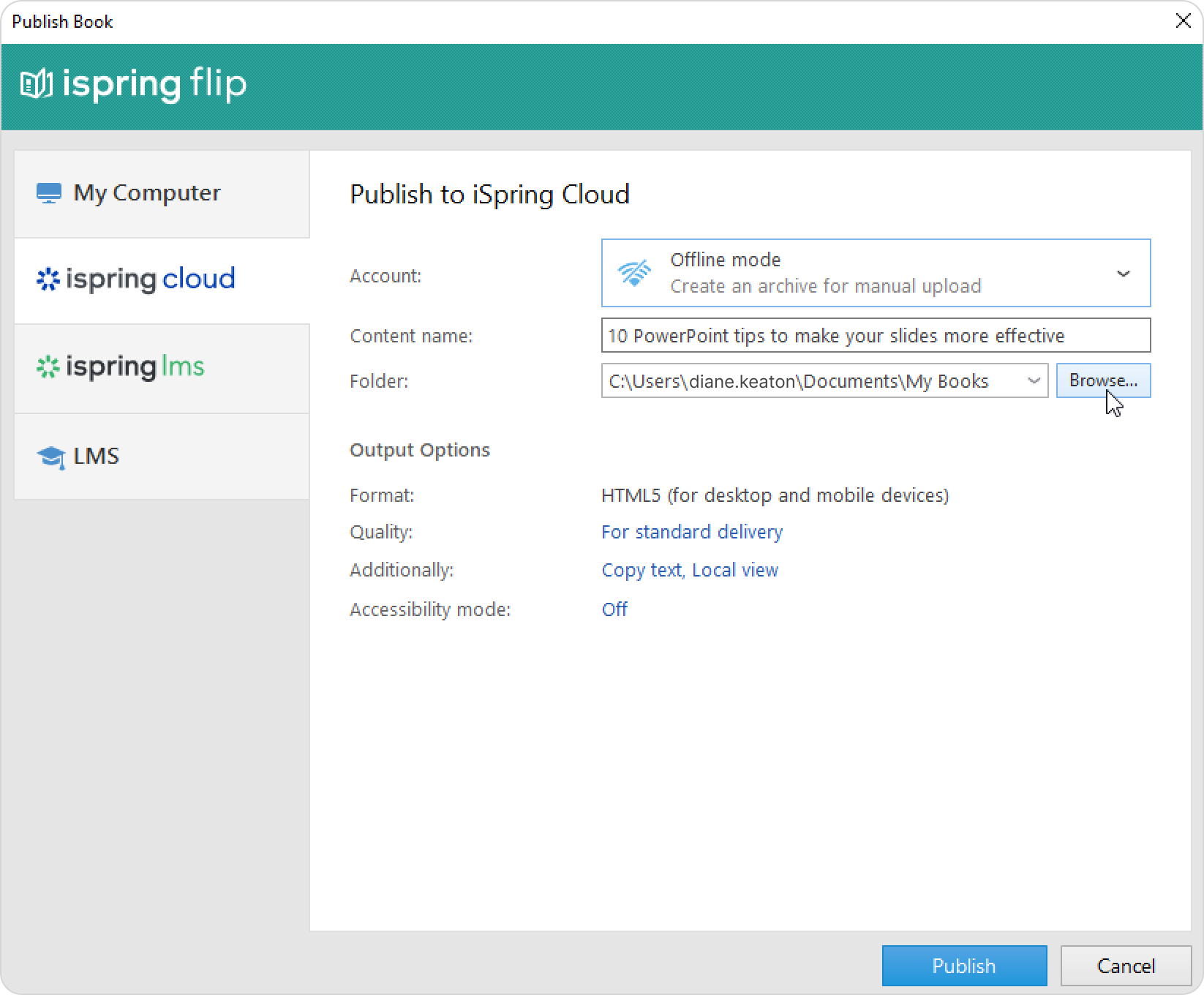
Enter a title in the Content name field. By default, the title is the same as that of the document.
Specify the local or network folder in which the book will be saved in the Folder field. To do this, click the Browse... button on the right.