AVAILABLE WITH BUSINESS SUBSCRIPTION

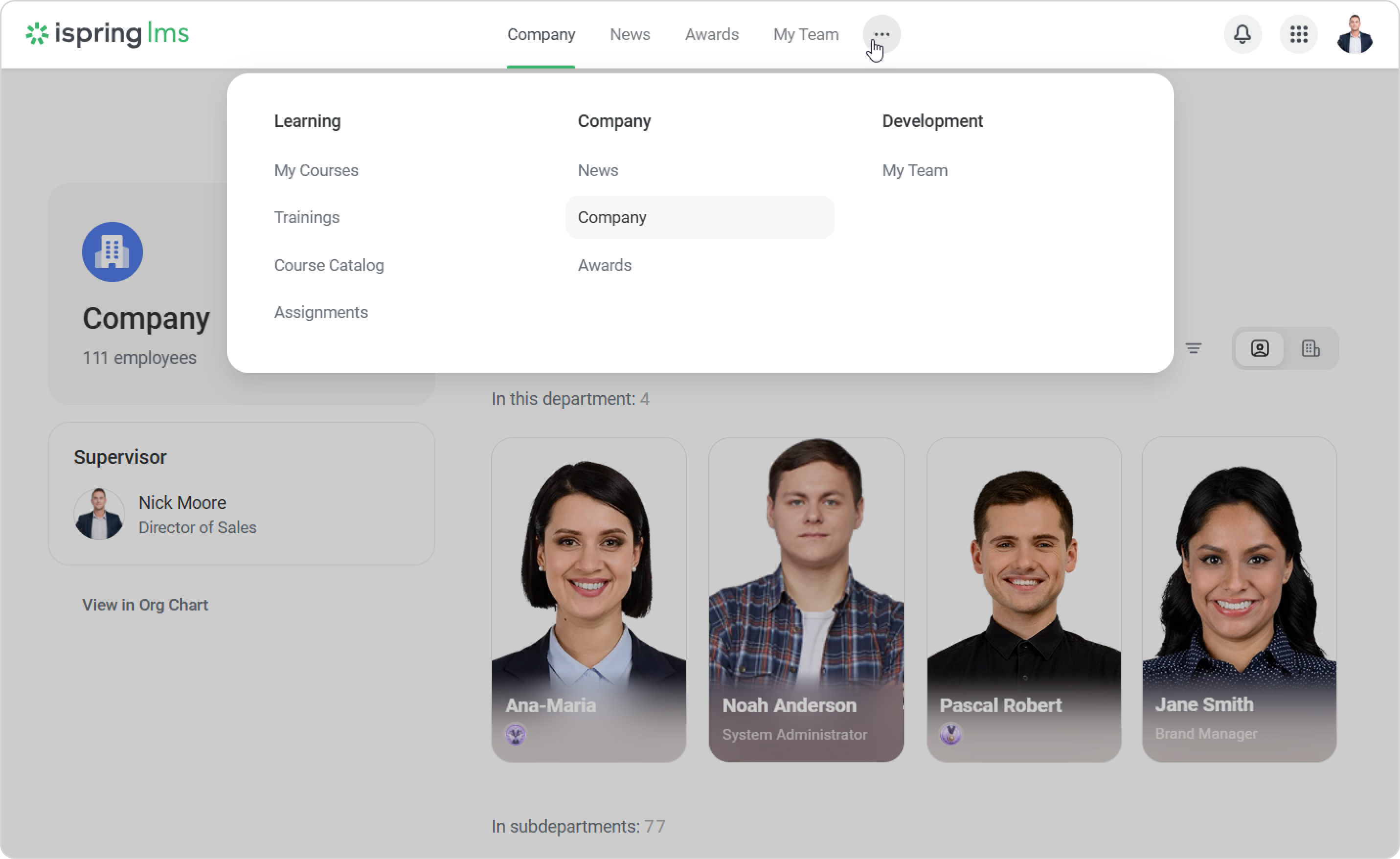
Administrators now can personalize the navigation menu and change the home page for users within the User Portal. This feature allows administrators to choose which modules appear in the Quick Access Menu in the User Portal. Other modules will be available in the three-dot menu.

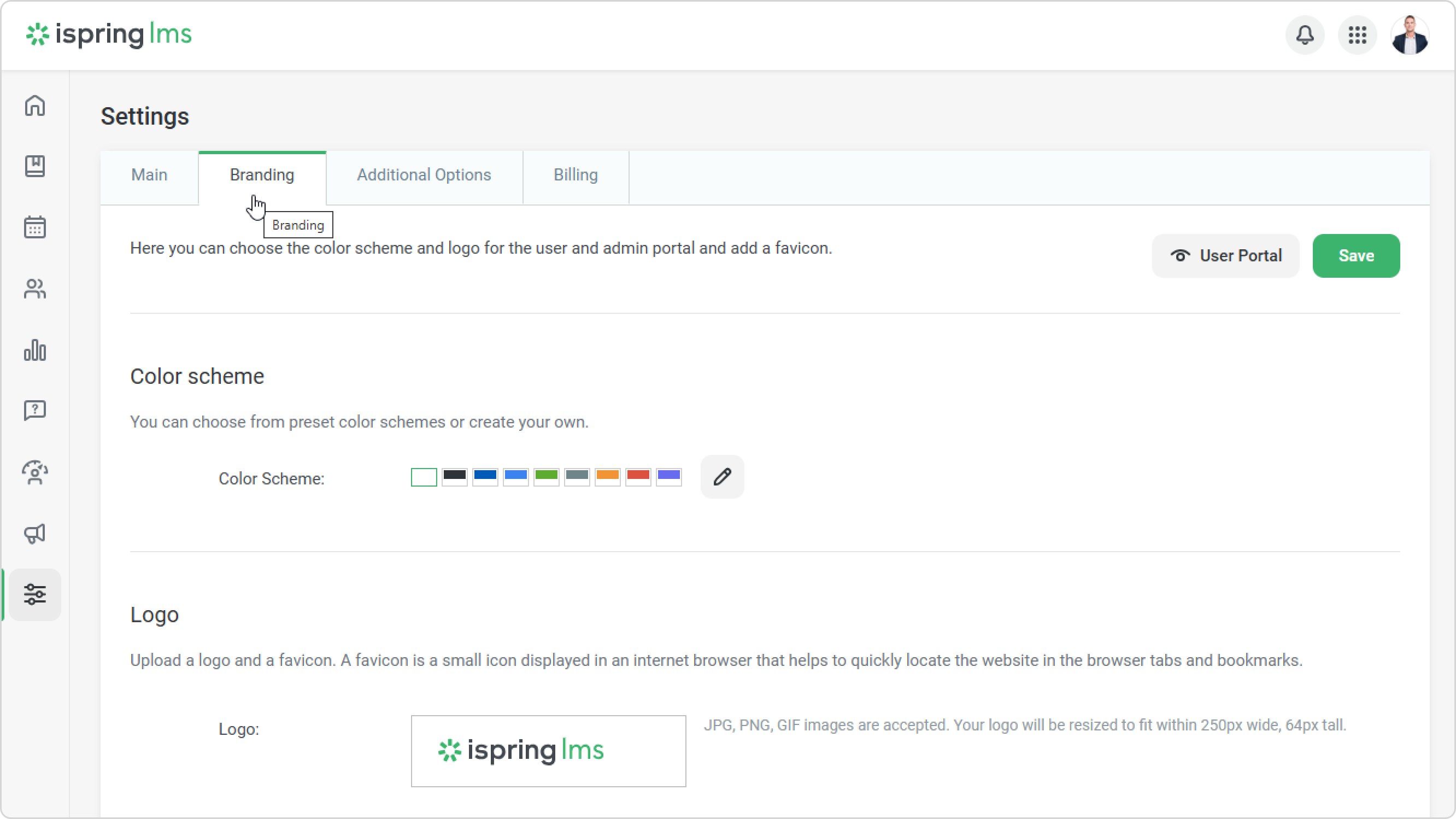
  1. Go to Settings > Branding.


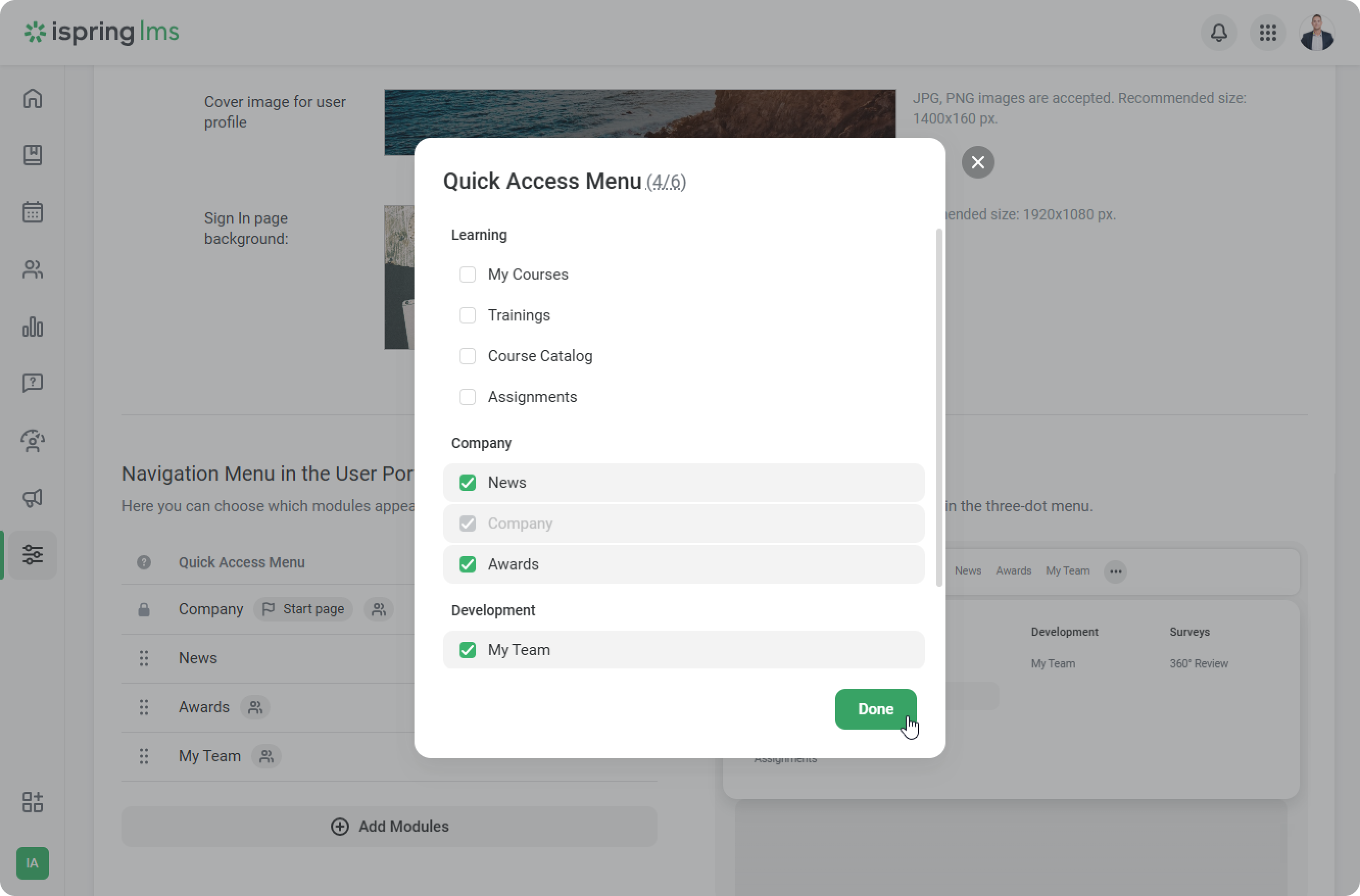
  2. Scroll down to the Navigation Menu in the User Portal section. Here you can choose which modules will appear in the Quick Access Menu in the User Portal. To do this, click on Add Modules.

    You can add a maximum of 6 modules to the Quick Access Menu.


  3. For example, let's add the following modules to the Quick Access Menu: News, Awards, and My Team. The remaining modules will move to the three-dot menu.


  4. Next, select which module will be the start page.

    You can choose any section as the start page, but if the employee cannot access it, the default will be the My Courses section. For example, if you have selected the News module as your start page and later decide to disable this module in your account, the My Courses module will automatically be set as your default homepage.
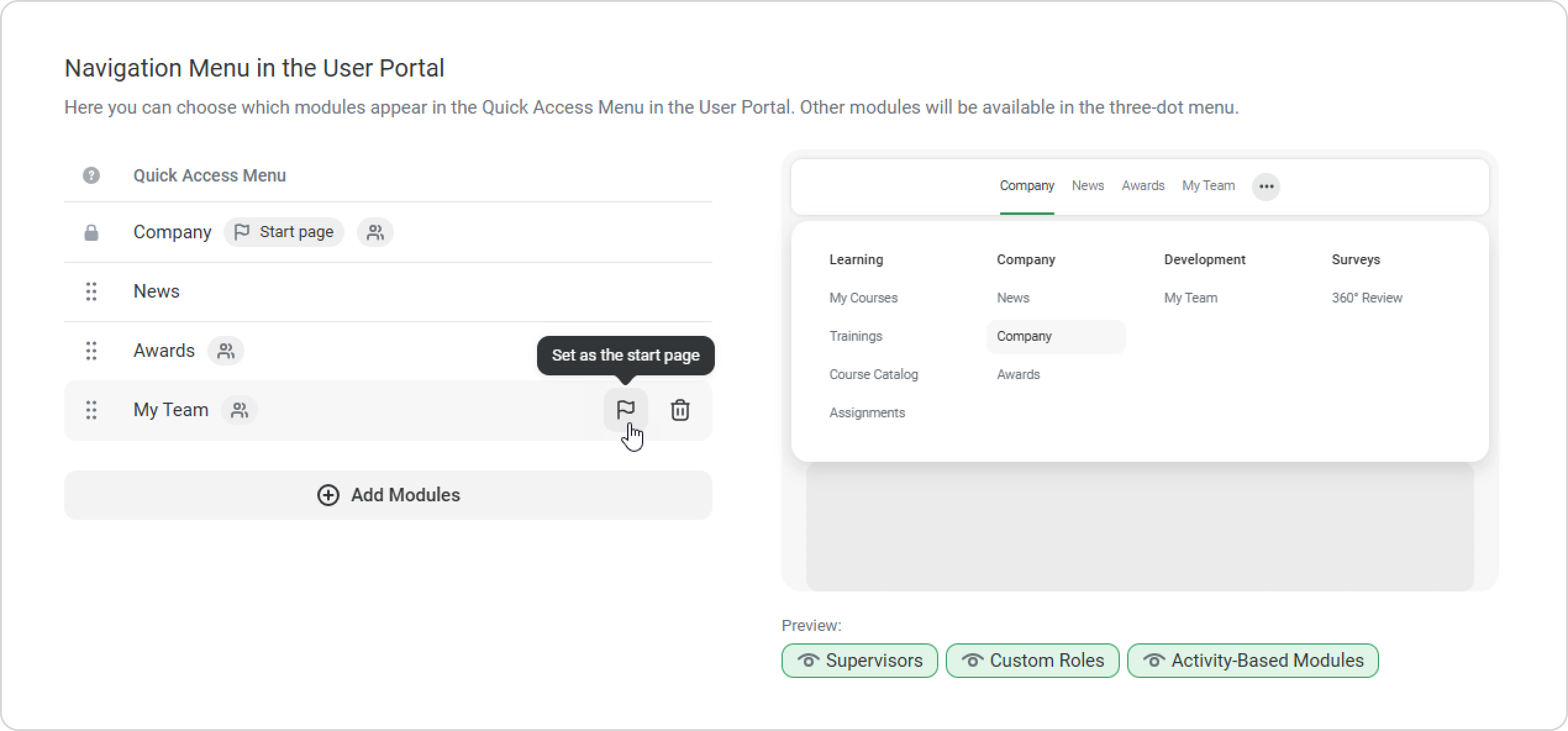
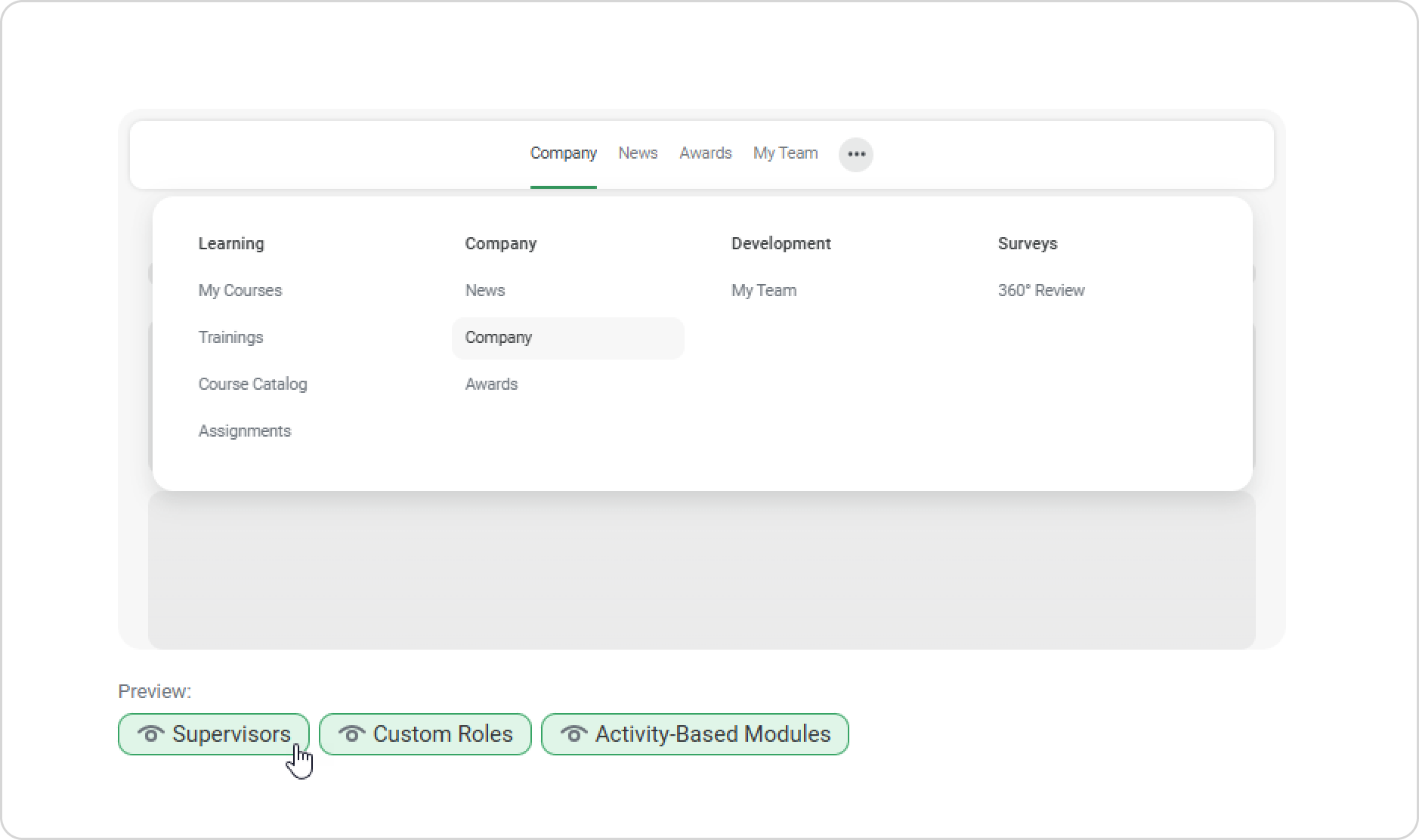
  5. In this section, the administrator gets a preview of how the navigation menu will appear to users in the User Portal.

    • For instance, to view how the navigation menu appears to department supervisors, simply select the 'Supervisors' tag and deselect the others.

    • If there are users with custom roles in your account, such as those assigned to check assignments, choose the 'Custom Roles' tag.

    • Should your company carry out On-The-Job Training or 360° Review, opt for the 'Activity-Based Modules' tag. This selection allows you to view the modules accessible to users participating in sessions.


  6. Finally, click Save.

    Done! You have set up your iSpring LMS navigation menu. This will help learners navigate to the important modules faster.