How to Sign in to iSpring LMS
To sign in to iSpring LMS, open your account URL and select an available sign-in method.
Where to find your iSpring LMS account URL
You can find your account URL:
- in the email inviting you to the portal
- in the notification about your scheduled training
If you've already signed in to iSpring LMS, the account URL may have been saved:
- in your browser history or bookmarks
- on the sign-in page in the mobile app
The account URL looks like this: account.ispring.com or account.ispringlearn.com.
If you can’t find the account URL, contact the person responsible for your training or an account administrator.
What sign-in methods are available
There are two ways to open iSpring LMS:
- Online — enter an account URL in the address bar
- Via app — enter an account URL on the sign-in page
Once the platform is open, you can sign in using one of the following methods:
- With iSpring LMS login details
- Via login and password
- Via login and password using CAPTCHA
- Via login, password, and email code
- Via corporate access
You can sign in with your corporate account if this method is configured in your organization.
Some accounts support several sign-in methods. Select the one that works best for you.
If you aren’t sure what your login details are, or the sign-in page looks unfamiliar, contact the person responsible for your training or an account administrator.
What to do if you can't sign in to iSpring LMS
Below are the most common issues encountered when signing in to iSpring LMS and how to resolve them. Find the issue you're experiencing and follow the instructions.
Check the Spam, Promotions, Social, and other folders.
If you can’t find the login details, contact the person responsible for your training or an account administrator. They can check whether your user profile exists and which email address the invitation was sent to.
You need to sign in to your account with your login. It may differ from your email address.
If you don’t know your login, contact the person responsible for your training or an account administrator. They'll send it to you.
You can reset your password by clicking on Forgot password? on the sign-in page.
If you don’t receive an email with a password reset link, contact the person responsible for your training or an account administrator. They’ll check whether you are allowed to access the iSpring LMS account and which email address is associated with you.
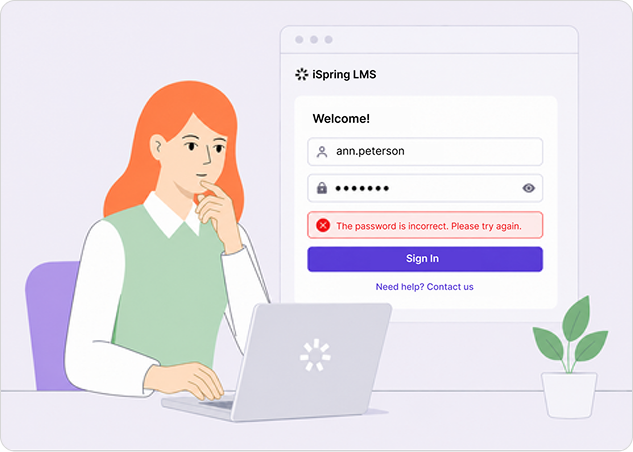
Ensure that you entered your login details correctly. Check your keyboard layout, make sure Caps Lock is off, and remember that passwords are case-sensitive.
Remember that your login may be different from your email address. If the password is correct but you still can’t sign in, check the login you entered.
If you entered everything correctly, but are still experiencing issues with signing in, your login or password may have been changed. Contact the person responsible for your training or an administrator, so they can send you the login details.
Make sure you’ve opened the mailbox where you receive all notifications from iSpring LMS. Check the Spam folder.
If you didn’t receive the email with the code, contact the person responsible for your training or an account administrator. They will look at which email address you were registered under.
You need to sign in to your account with your login, which may be different from your email address. If you receive an error every time you try signing in, you may be entering the wrong login.
Contact the person responsible for your training or an account administrator, so they can send your login details.
Signing in with a corporate account lets you use the same credentials as for other services in your organization.
If you are unable to sign in, the issue may be related to one of the following:
- corporate login settings
- account settings
- technical restrictions on the corporate system
Contact the person responsible for your training or an account administrator. They’ll look at the login settings and help you to restore access.
If you previously accessed iSpring LMS but can no longer access it, contact the person responsible for your training or an account administrator. Only they can check whether you have access to the iSpring LMS and restore it if necessary.
Who to contact for help
Contact an account administrator if you:
- Don’t know the link to your iSpring LMS account
- Didn’t receive an email invitation
- Didn’t receive an email with a code
- Don’t know your login
- Have forgotten your password and can’t reset it yourself
- Think your login and password are incorrect
- Can’t sign in via corporate access
- Find that your access has been blocked, restricted, or removed
- Notice your login details have changed
The account administrator will be able to check whether you are allowed access to iSpring LMS, provide you with your current login details if that is the case, and restore your access to the training.