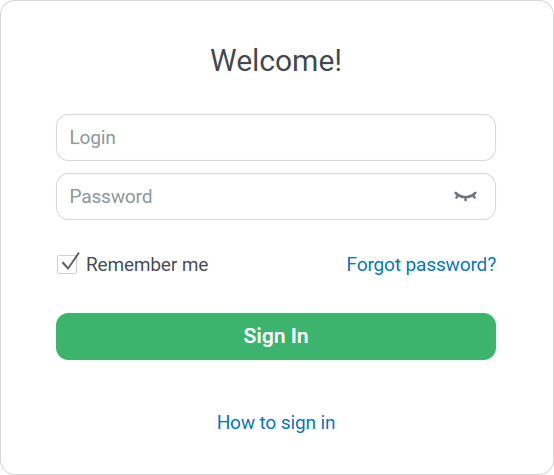
You can add a support contact to the sign-in page so your learner experiencing signing in issues can contact administrators for assistance. Learners can click Contact us to get help.
How to add a support email address
- Go to Settings > Main.
- Scroll down to the Sign-In Help section and click on Email.
- Enter an email address.
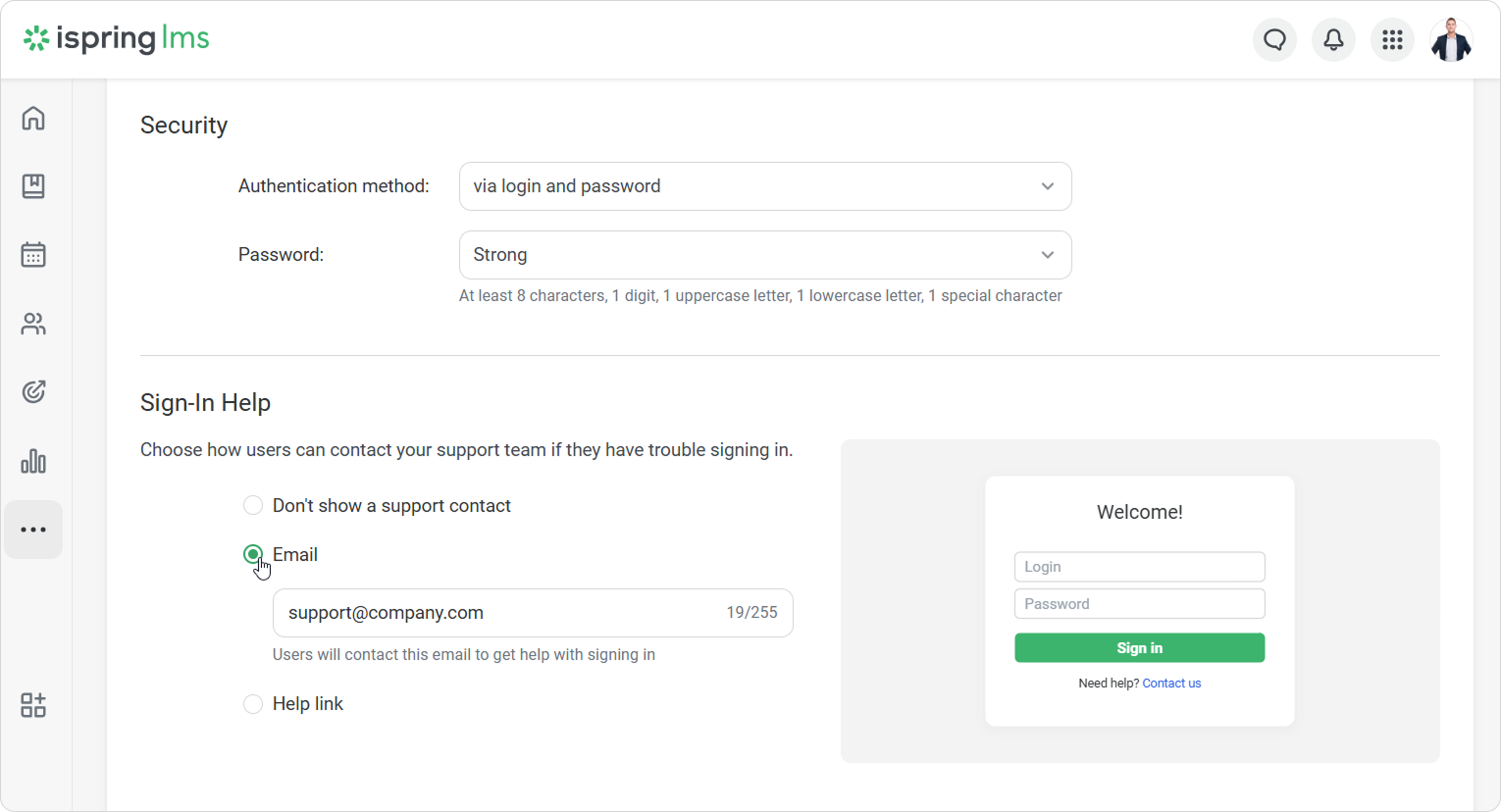
- Check the preview of the sign-in page on the right.
- Click on Save at the top of the page.
Done! When learners click Contact us, their email app will open, and they’ll be able to email an administrator.
How to add a help link
You can add a link to the page with the administrators' contact info, a link to the support contact form, and other help links.
- Go to the Settings > Main.
- Scroll down to the Sign-In Help section and click on Help link.
- Enter a link.
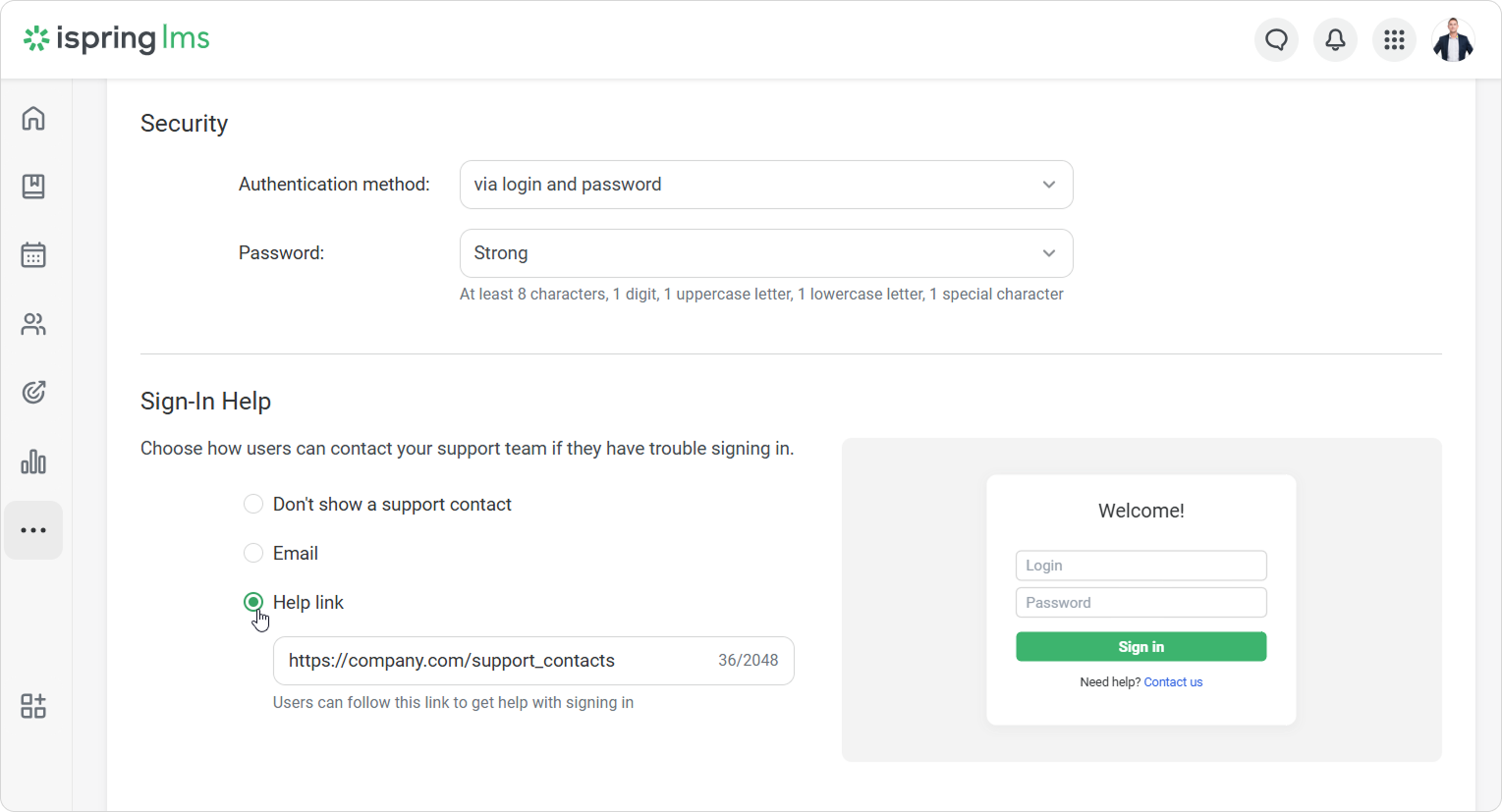
- Check the preview of the sign-in page on the right.
- Click on Save at the top of the page.
That’s it! Now, if a user forgets their sign-in details, they can follow the Contact us link to get help.
- By default, support contact information isn’t displayed.
- If Don't show a support contact is selected in the account settings, the Contact us link won't appear on the sign-in page.
- On the sign-in page, users will see the link to the instructions on how to sign in to iSpring LMS.