On the General tab of the course editing page, you can update the course title and description, add images, and specify other course details.
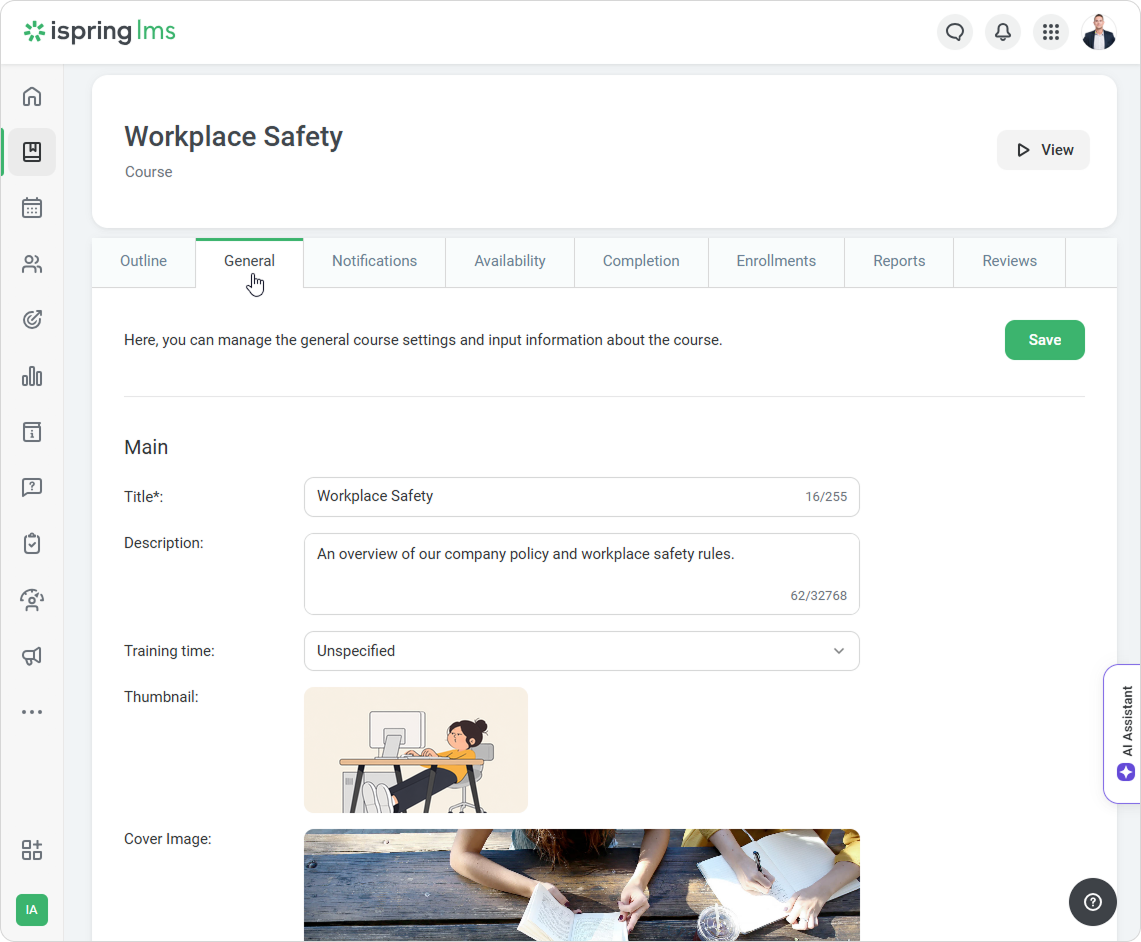
General
In this section, you can:
change the course title and description;
specify the recommended training time;
add a thumbnail and cover image;
select an instructor;
add tags;
copy a link to view the course.
The recommended aspect ratio for the thumbnail is 16:9. The image must be at least 640 × 360 pixels. Supported formats are JPEG, PNG, and GIF.
The recommended cover image size is 1920 × 500 pixels. Supported formats are JPEG, PNG, and GIF.
Course Instructor
Here you can select a user who will be the course instructor. Learners will be able to contact them to ask questions related to the course subject.
To assign an instructor, start entering their first name, last name, username, or email address in the Course Instructor field. Then select a user from the suggested list. Learn more in the Instructors article.
Users with the Account Owner, Account Administrator, Department Administrator, or custom roles can be assigned as instructors.
Share Link
To ensure your employees can easily access the course once it's been assigned, copy the link and forward it to them. The course will be visible in the User Portal under the My Courses section.
Please note that only employees who have enrolled in the course will be able to see it.
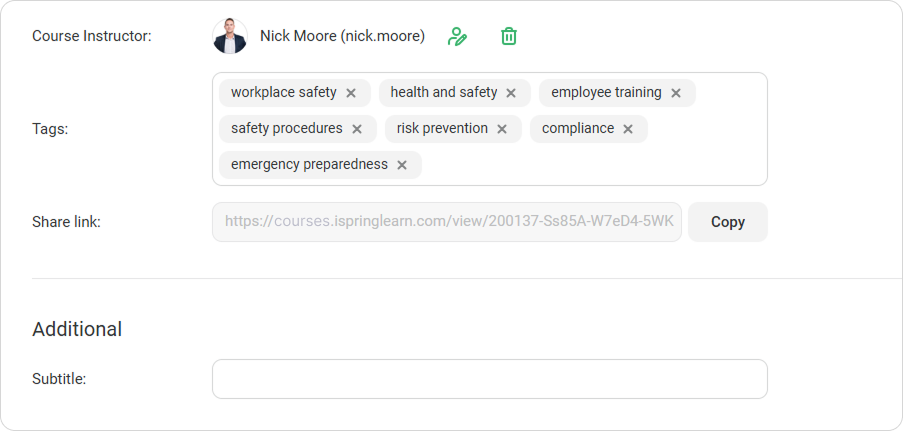
Additional
In the Additional section, you can enter more information about the course, such as its difficulty level or training program.
Additional fields are created in the account settings. Learn more in Custom Course Fields.