AI Assistant is a built-in chatbot designed to help course creators find answers to technical questions about the software quickly and efficiently.
This new feature is available in beta to all iSpring Suite users except .eu accounts.
Our AI tools are powered by trusted third-party AI technologies. We do not use your data or content to train AI models.
Please note:
AI can make mistakes, so be sure to check generated content for accuracy.
Do not enter personal or confidential information.
By clickingContinue, you confirm that you have read and agree to our AI Usage Policy andPrivacy Policy.
What Can AI Assistant Help With?
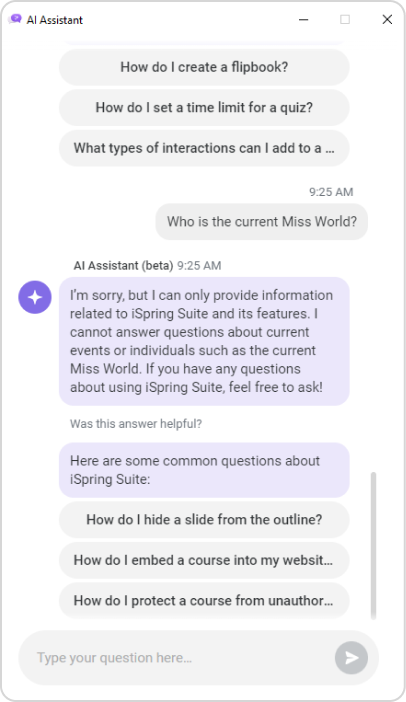
AI Assistant answers questions about iSpring Suite.
If the question is unrelated to iSpring Suite, AI Assistant will provide a standardized response:
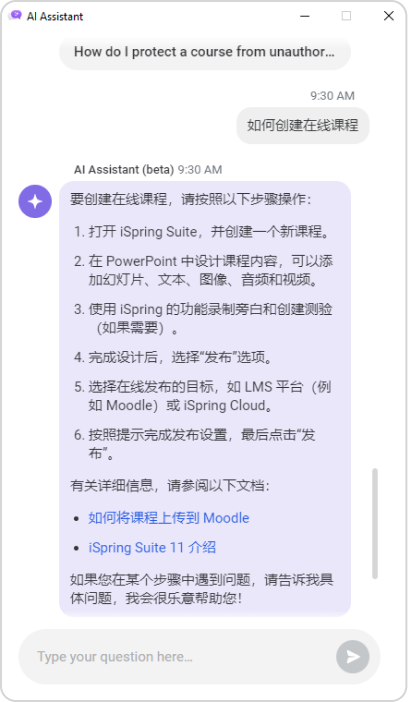
To answer your question, AI Assistant searches for help docs in English. If you ask the question in a different language, AI Assistant will translate the answer into that language.
How to Use iSpring’s AI Assistant
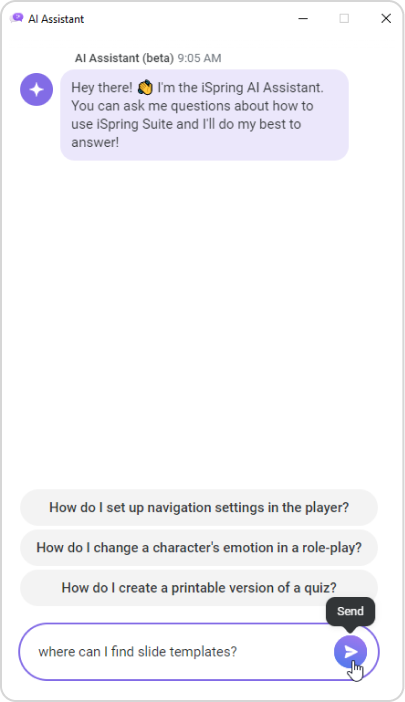
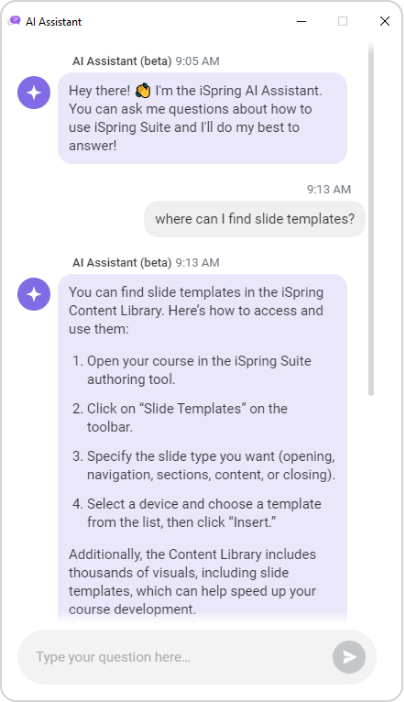
Sign in, go to the iSpring Suite tab, and click on AI Assistant.
Type in your question and click on Send.
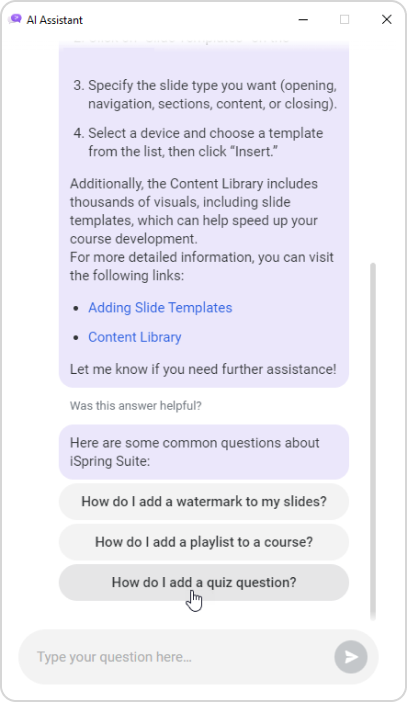
AI Assistant will provide three relevant questions that you can search for answers to. You can select one to start exploring the iSpring Suite.
Well done! AI Assistant will offer you step-by-step instructions and helpful links.
How to stop AI Assistant from responding
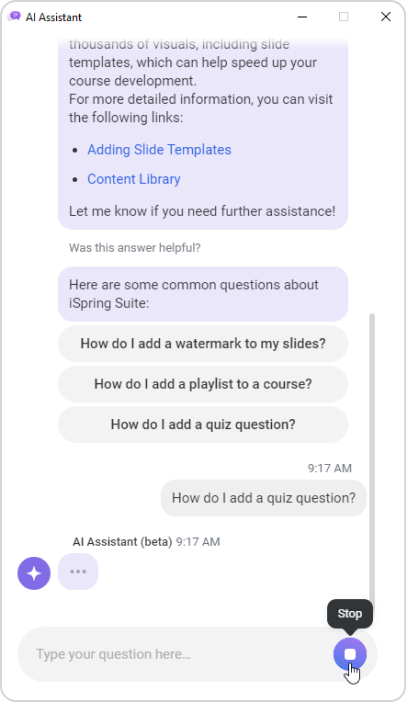
If you change your mind and want to ask a different question, you can stop AI Assistant.
When AI Assistant starts responding, click on Stop.
How to hide or close AI Assistant
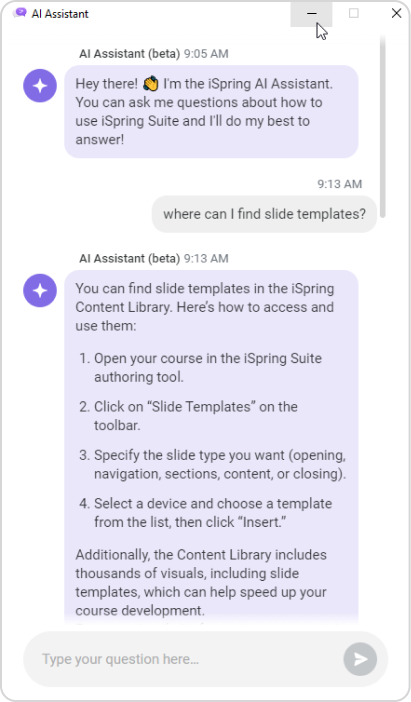
If you don't need the assistant at the moment, you can hide it.
Click on Hide.
Then, click on AI Assistant on the taskbar to open the dialog window.
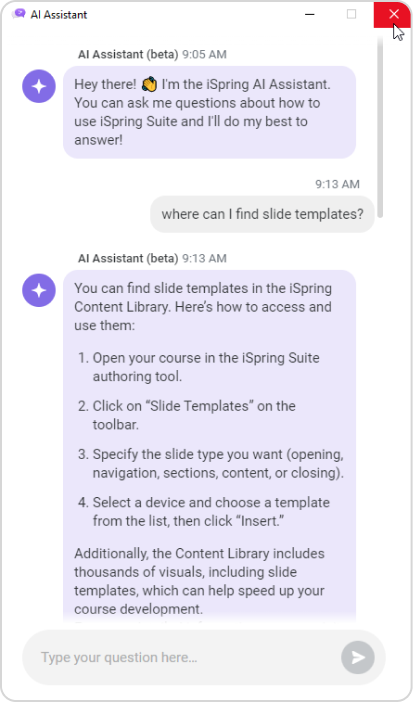
The dialog window with AI Assistant stays open even if you close PowerPoint. To close the window, click on the “X.”