Accessibility for Pages and Online Quizzes
Alternative text for images
Alternative text is a brief description of an image that a screen reader reads aloud. Add alternative text when an image contains information learners need to understand. 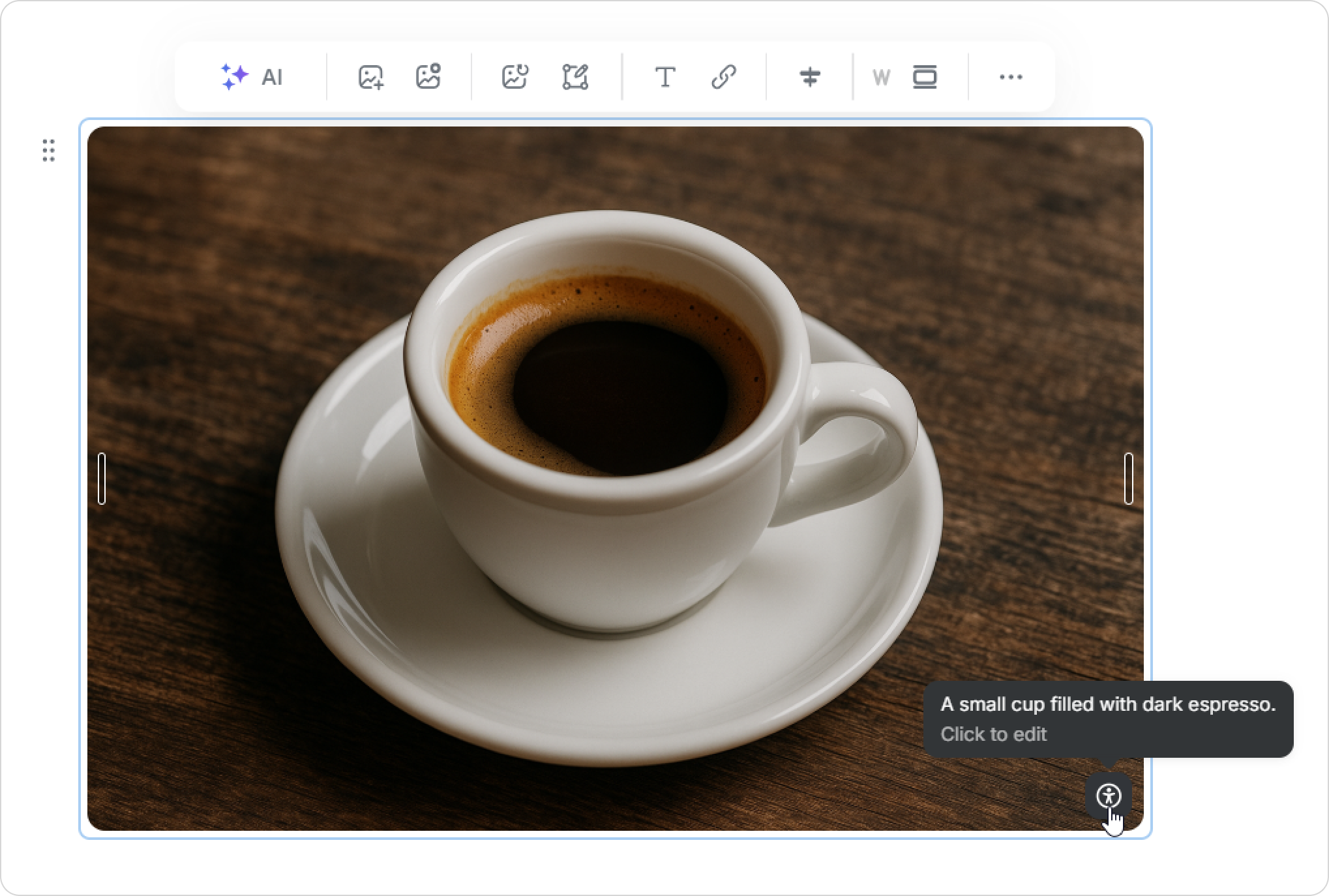
How to add alternative text
In pages
You can add alternative text to any image, including a Page cover image, annotated images, and interactive content blocks.
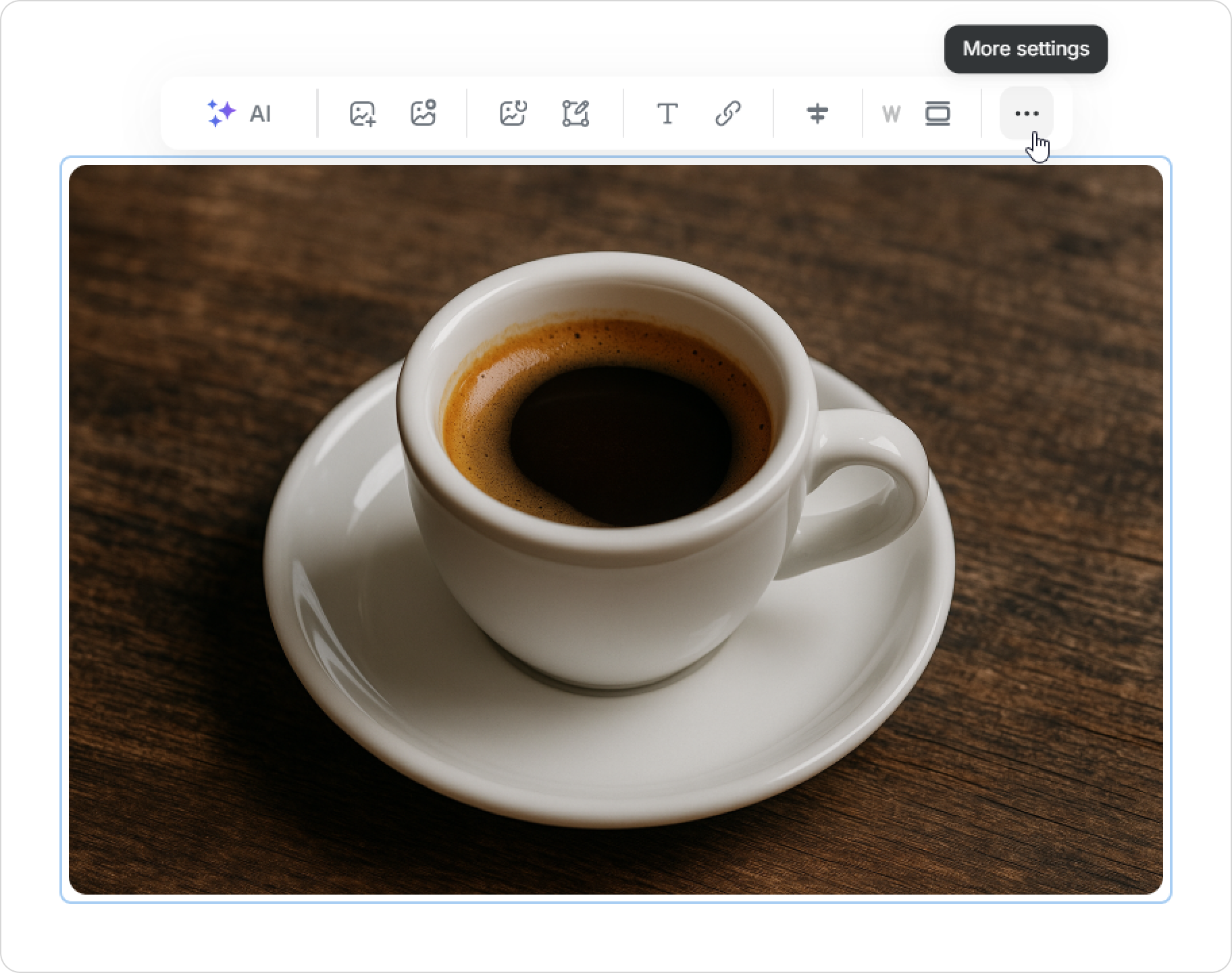
- Select an image and click on More settings.
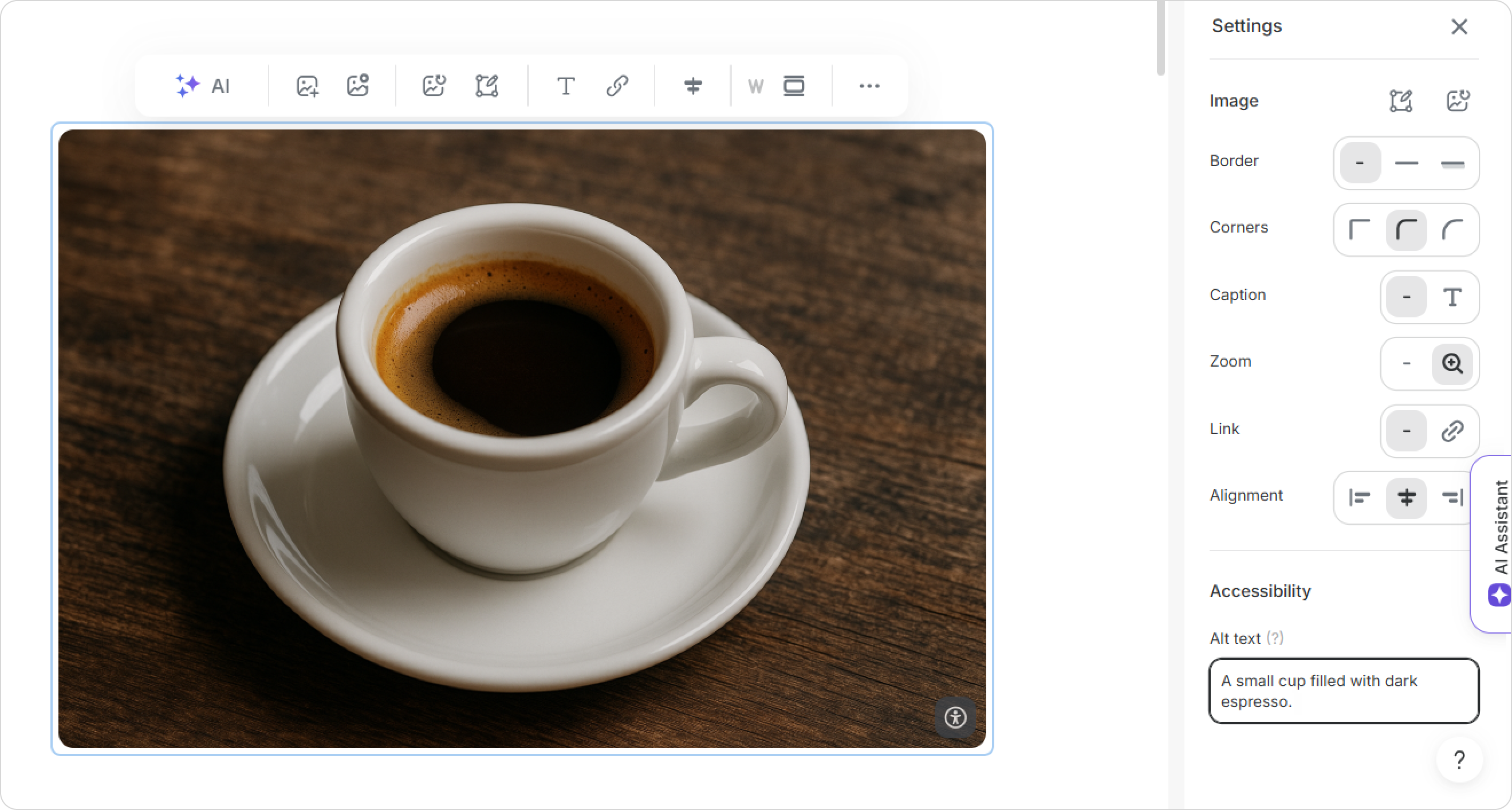
- In the right-hand panel, open Accessibility.
- Enter a description in the Alternative text field.
Done! A special icon now appears on the image.
- You can edit or remove the alternative text at any time.
- If you copy and paste an image elsewhere, its alternative text is copied with it, so you don't need to add it again.
In online quizzes
- Open the question and click on Add a picture or video.
- Select Upload image or Add image URL.
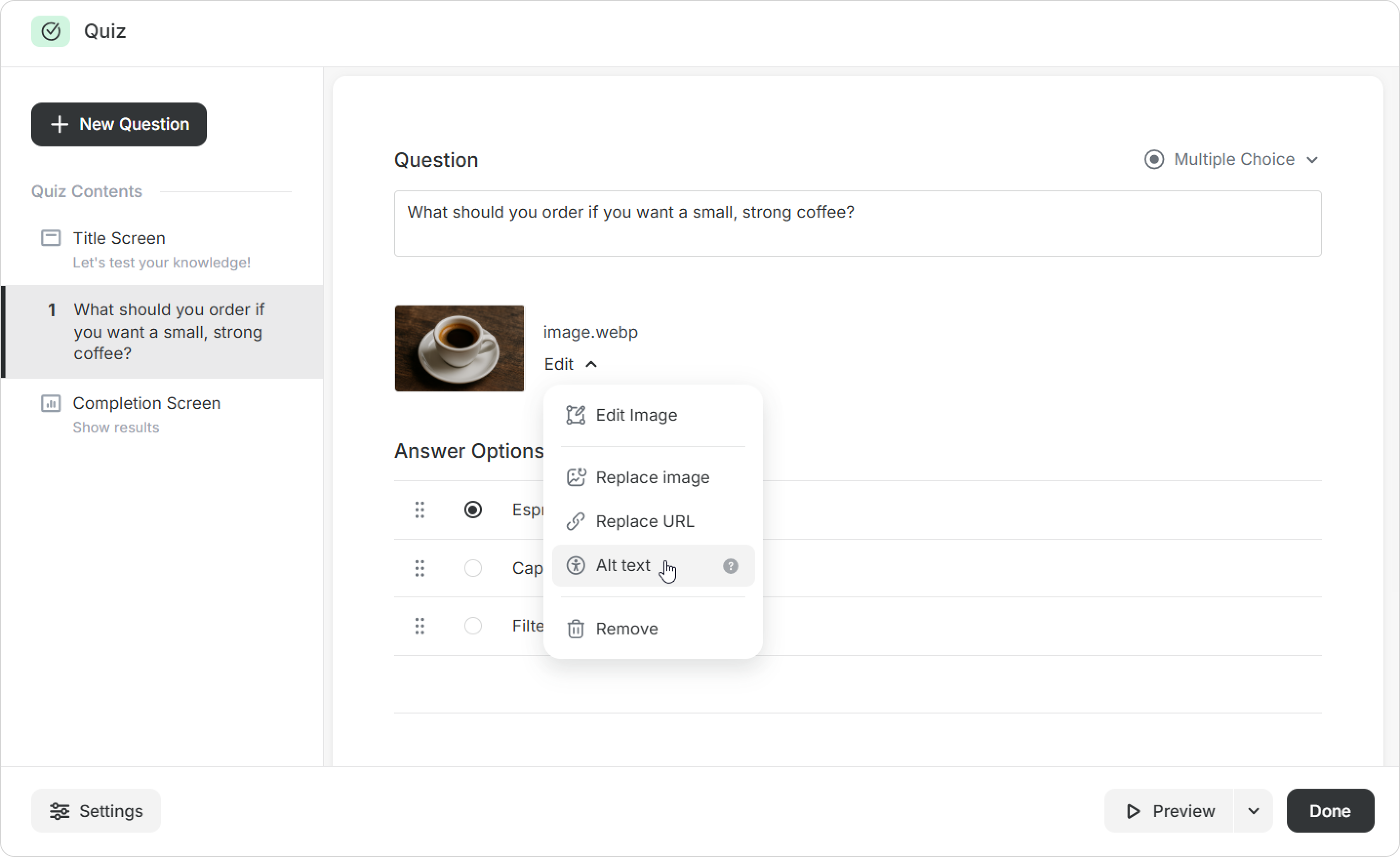
- Once the image is added, click on Edit.
- Click on Alt text and enter a description.
Done! When learners navigate to the image, their screen reader will read the alternative text aloud.
Which images need alternative text
Add alternative text when an image explains the material or provides information that isn't included in the surrounding text.
For example:
- A flowchart or diagram
- An infographic
- An interface screenshot
- A photo that learners need to analyze
- An image that contains important text
Decorative images don't need alternative text because they lack information learners need to understand the material.
How to write alternative text
Describe the information learners need to understand. Include only details that help explain the image.

A man in a blue shirt is sitting at a desk in front of a laptop.

A manager is holding an online meeting with the team.

- Consider the context. The same image may need different descriptions depending on how you use it.
For example, you could describe a photo of an employee differently in two courses:
- Workplace safety course: "An employee is sitting upright while working at a computer."
- Communication course: "An employee is taking part in a video call with their camera on."
- Keep it brief. One sentence is usually enough.
- Don't start with "Image of" or "Picture of." Screen readers already announce that the element is an image.
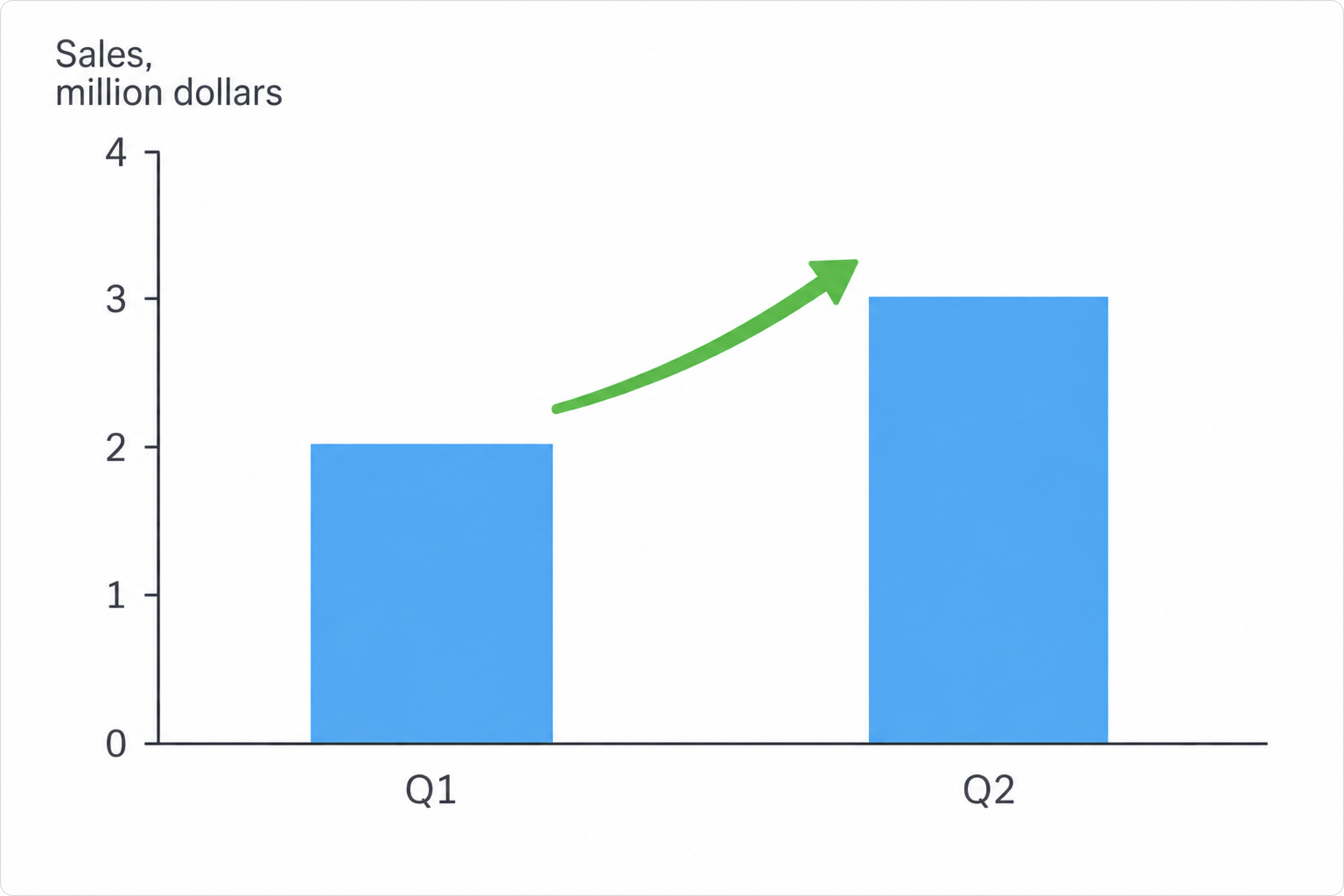
Image of a sales chart.
Sales increased from $2 million to $3 million in the second quarter.
How to check your content before publishing
Before publishing, verify that:
- All informational images have alternative text.
- Each description conveys the image’s meaning.
- Decorative images don't have unnecessary descriptions.
- Alternative text doesn't repeat nearby text.
- Important information isn't presented only inside images.
- Each description is clear even without viewing the image.