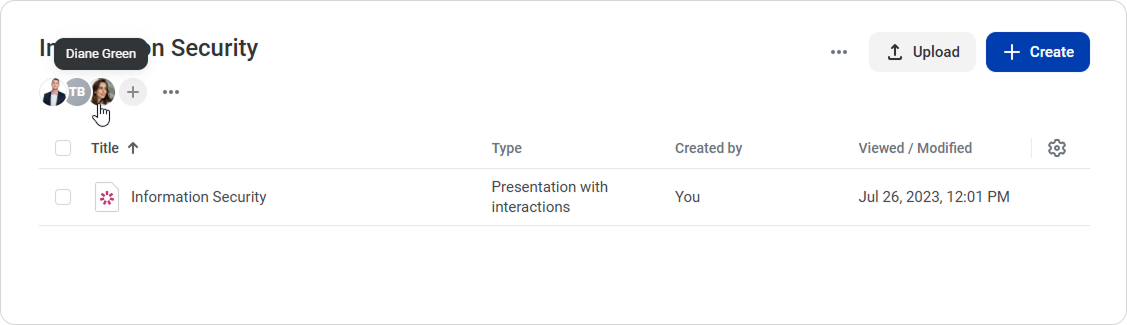
You can invite individual team members to a project and assign them different access levels.
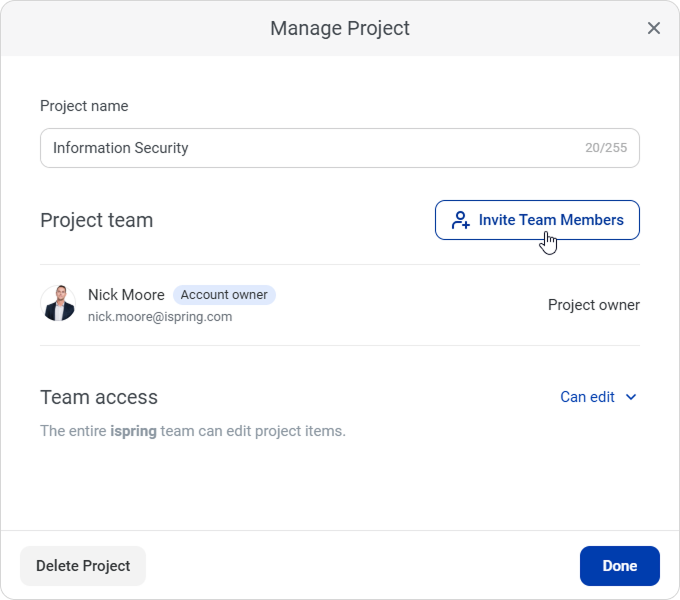
- Open a project and click Invite Team Members.
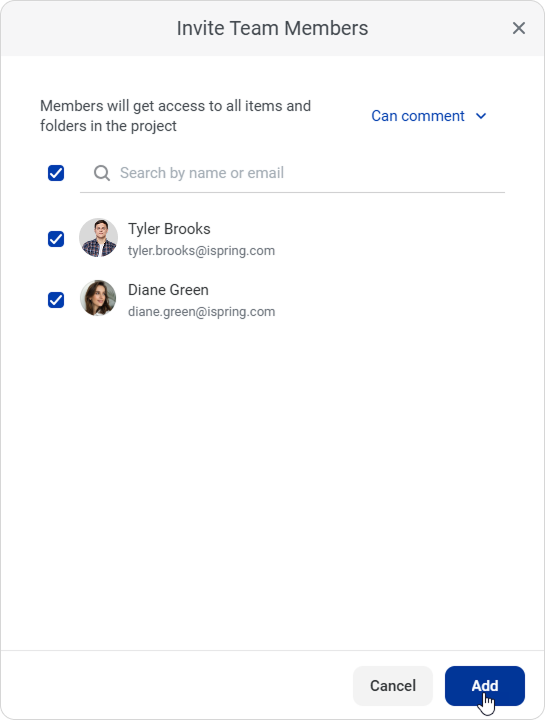
In the Invite Team Members window, select the access level to the project: Can view, Can comment, or Can edit.
| Access Level | Role | Description |
|---|
| Can view | Authors and reviewers | The team member can view the project content. |
| Can comment | Authors and reviewers | The team member can view the project content items and comment on them. |
| Can edit | Only authors | The team member has the same permission as the project owner: they can view, comment, edit the project content, and manage access to the project and team members who were given access to it. |
Next, select the team members you want to invite and click Add.
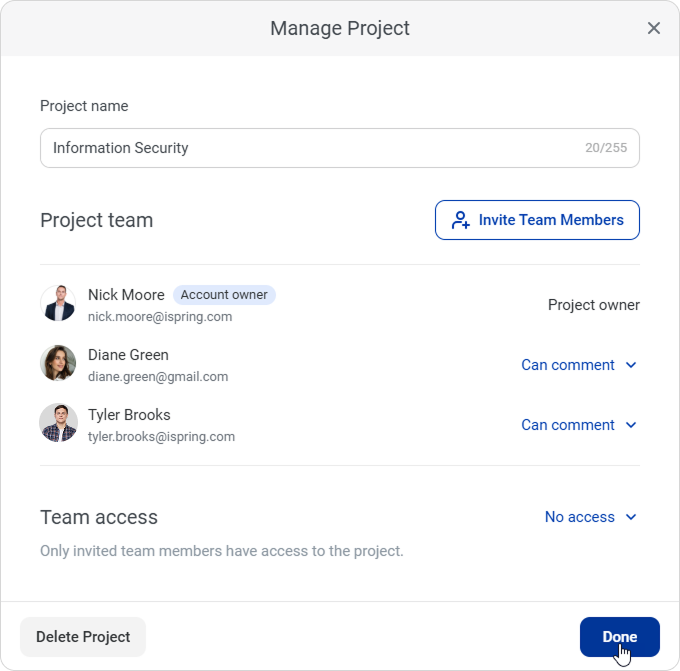
- When you finish, click Done in the Manage Project window. You can later change a team member’s access level or remove them from the project.
- Added team members will see the project in their accounts and, depending on their access level, will be able to view, comment on, or edit its content.
- Selected users' initials or their avatars, if they were uploaded, will appear next to the project title.